
Compliant with ISO 15408
1. Introduction
AM-C6000/C5000/C4000/M5500 are ISO15408 certified, conforming to IEEE2600.2.
To use the product in compliance with ISO15408, the administrator or CE must install and configure the product in accordance with "Supplemental Security Guide".
This manual supplements "Supplemental Security Guide".
Necessary information for carrying out the work is as follows.
1.1 Certified Products
ISO15408 certified products are following models with fax boards installed.
Not applicable if a fax board is not installed.
- AM-C6000
- AM-C5000
- AM-C4000
- AM-M5500
1.2 TOE (Target of Evaluation) version
TOE stands for "Target of evaluation" and it means the scope of ISO15408 certification target.
Certified items are the main unit and manuals (paper-based and electronic file ). The TOE versions certified and the versions of each item are as follows.
| Item | Version | ||
|---|---|---|---|
| AM-C6000/5000/4000 | AM-M5500 | ||
| TOE | 1.00 | ||
| Main unit | Hardware | A | |
| Firmware | GW03N4 (FC1.04.1) | WO15OB | |
| Fax Board | Super G3/G3 Multi Fax Board/ PR3FB0 | - | |
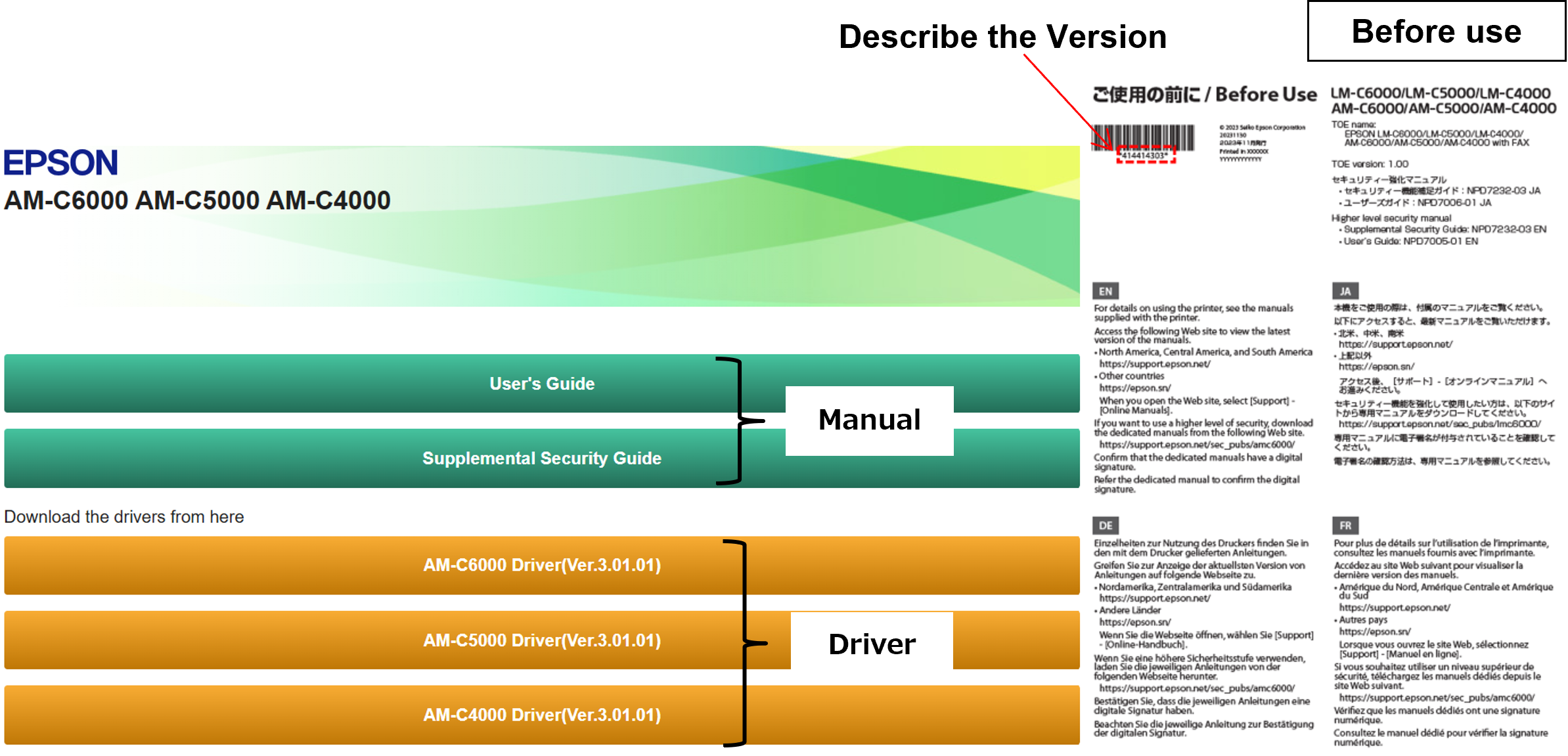
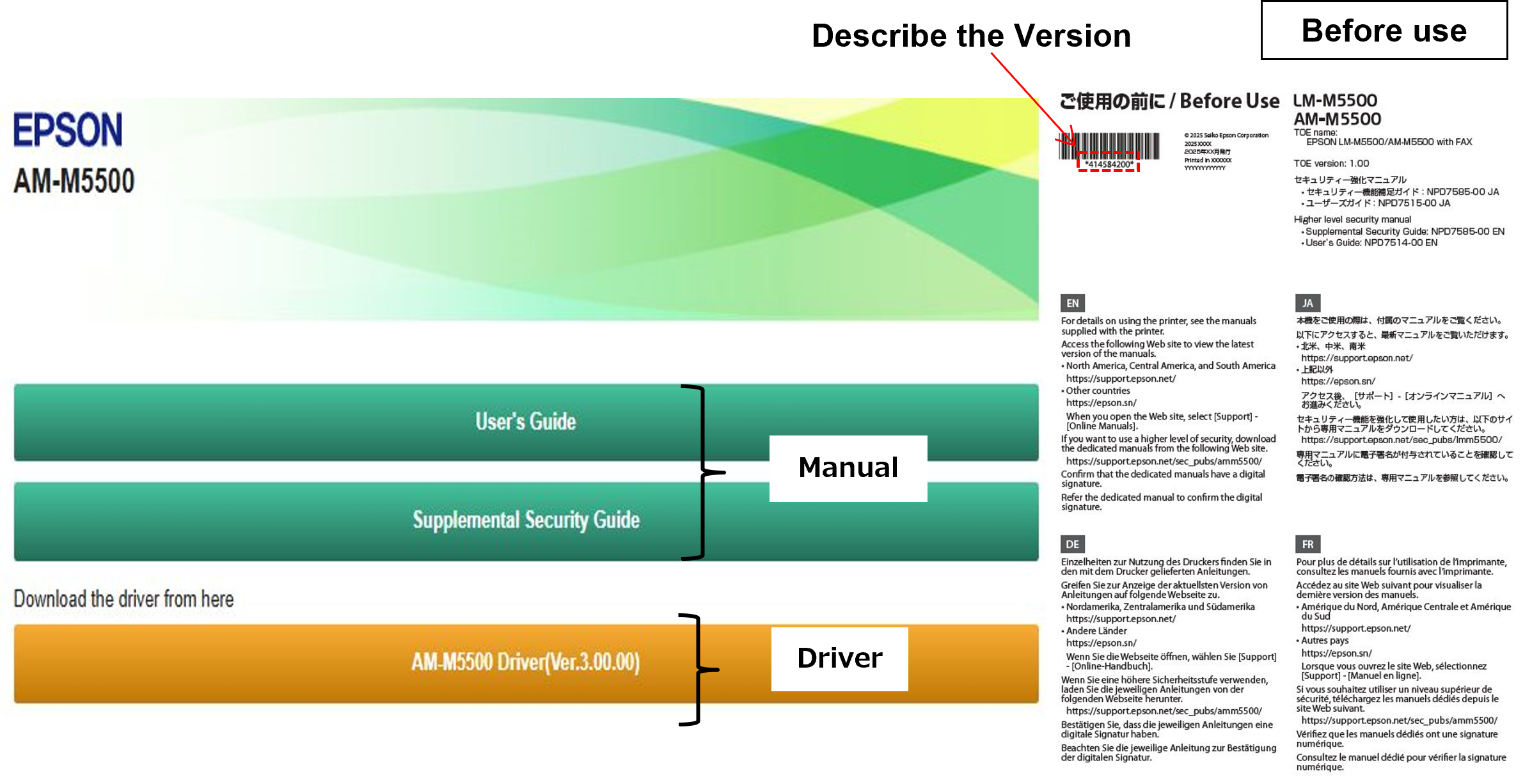
| Manual (paper) | Before Use | 4144143-03 | 4145842-00 |
| Manual (electronic) | Supplemental Security Guide | NPD7232-03 EN | NPD7585-00 EN |
| User's Guide | NPD7005-01 EN | NPD7514-00 EN | |
2. Requirements and restrictions necessary for compliance
The implementation matters and restrictions required for ISO15408 compliance are listed in "Security Functions Installation and Setting List".
This explains "Categorization of security threats for MFP", "Security functions" to counter the threats, "Security functions installation and setting items" and "Limitations or Restrictions".
For details of how to install and setting the security function, refer to "Supplemental Security Guide".
3. Confirm user request
It is conceivable that users requesting ISO 15408 have various requests.
Before selling confirm which one of 1) ~ 3) below is applicable and make optimum installation and setting.
| No. | User's Requests | Procedure of Installation and Setting | ||
|---|---|---|---|---|
| 1 | ISO 15408 is not required | There is no problem in the installation procedure described in the service manual. There is no special installation / setting work. |
||
| 2 | User want to use only certain functions among multiple security functions. (e.g., User want to use only the function of the enable sequential deletion from HDD.) |
Follow the separate sheet "Security Functions Installation and Setting List" to check which security functions the user want to use. Follow the "Supplemental Security Guide" to install and set functions that the user requested.
|
||
| 3 | User want to use in compliance with ISO 15408 |
It is necessary to implement all installation and setting described in separate sheet "Security Functions Installation and Setting List". Follow the "Supplemental Security Guide" to install and set all security functions.
|

4. Outline of Installation and Setting
4.1 Confirmation Items
To use the machine under the ISO15408 certified condition, it is necessary to use the certified firmware.
Basically, it's recommended that using latest firmware version that is released after the certified FW, because it include bug fixed and same security function.
4.2 Confirmation and preparation before visiting customers
Items that need to be checked and prepared beforehand by dealers / service engineers before visiting customers.Extract and explain the items marked with "Security Functions Installation and Setting List".
| Confirmation and preparation | Description |
|---|---|
| Setup request to administrator | In order to satisfy security, ISO15408 judges dealers and service engineers as outsider. For setup procedure written in “Supplement Security Guide”, basically it should be done by User (administrator). |
| Check customer site internet connection | Electronic files (manual, printer driver) need to download by administrator for the installation and setting. |
| PC preparation request | It is necessary to update the certified firmware, to set each security function via the administrator PC. |
| Confirmation of packing box |
Make sure that the product packing box is not unpacked and that there is no obvious damage before transporting to customer site. Since pre-delivery inspection is not possible, unpacking work, initial ink charge, various settings, etc. will be performed on the customer's site. |
| Downloading the certified firmware | Download certified firmware (or latest firmware) from Tech Exchange beforehand, bring with you to customer site.
|
4.3 Details of Installation / Setting
Show the supplementary explanation about installation / setting work described in "Supplemental Security Guide".
As described in 4.2, installation / setting work is basically should be done by User(administrator), but some items require support from the service engineer.
Explain the Items excerpted from separate sheet "Security Functions Installation and Setting List".
| No. | Installation / Setting Item | Comment |
|---|---|---|
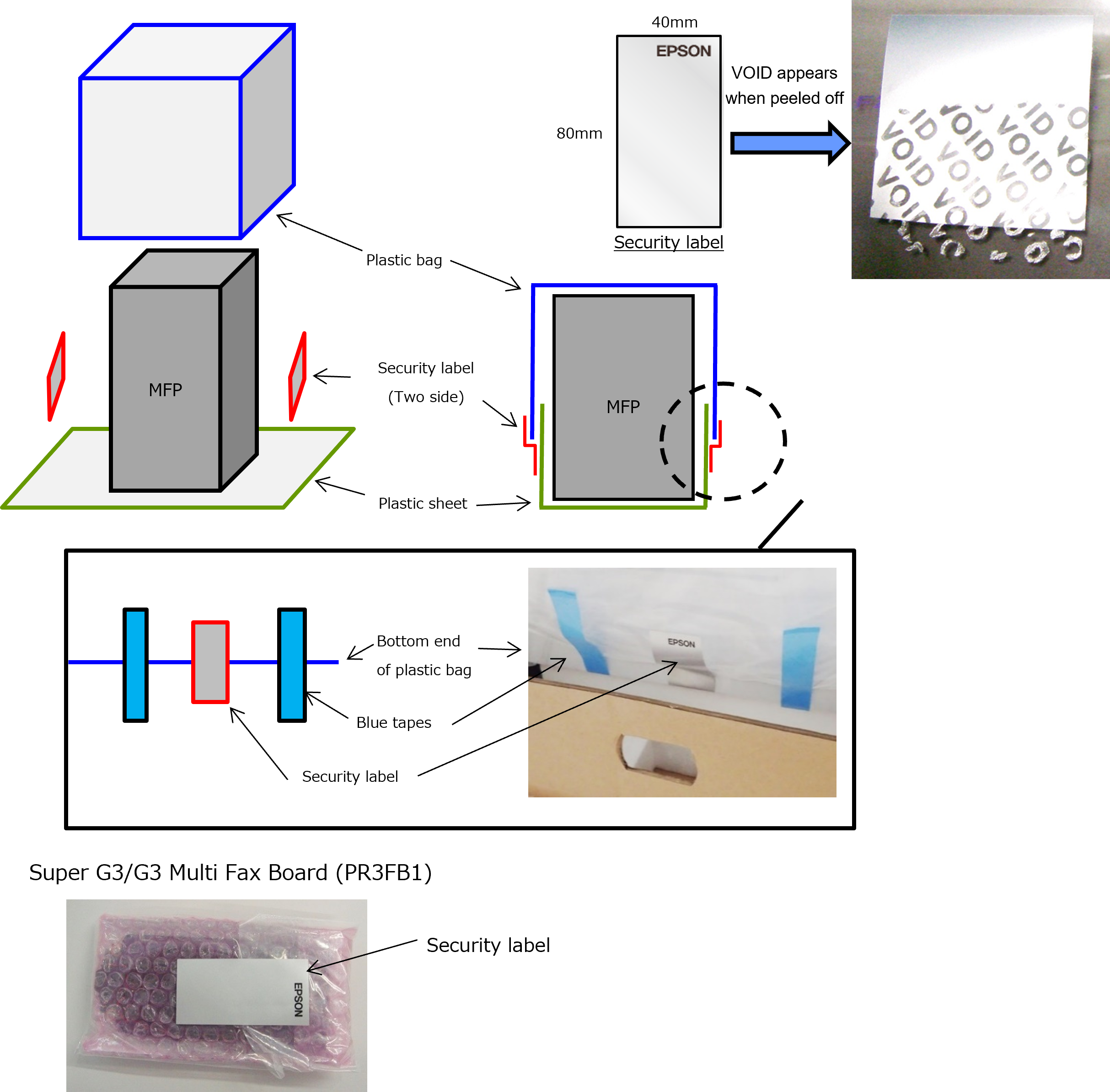
| 1 | Checking the shipping package | Make sure that the product packing box is not unpacked and that there is no obvious damage before transporting to customer site. *Can NOT perform Pre-delivery inspection(Ex. Unpacking work, Initial ink charge, various settings, etc. will be performed in customer site. ) |
| 2 | Checking the security label |
Confirm that there is no alteration from factory shipment to installation by "no security label peeling".
|
| 3 | Checking the name and model number of the fax board. |
|
| 4 | Downloading manuals (Refer "Before Use"sheet) |
The certified version of "Before use" is as follow.
If the user wishes to use it, install the driver on the PC.
|
| 5 | Checking digital certificates for the manuals | The certified version of each manual is as follows
|
| 6 | Checking digital certificates for the firmware (authenticated versions) | The service engineer must download the certification FW (or latest FW) in advance from Tech Exchange and bring it.
|
| 7 | Inserting ink cartridges and loading paper Fax board installation Checking the service person’s operations |
There is no problem in the installation procedure described in the service manual. There is no special installation / setting work. |
| 8 | Turning off/on the printer | - |
| 9 | Connecting the administrator’s computer to the printer by peer-to-peer connection | - |
| 10 | Updating the firmware to an authenticated version | Certification FW can not be updated via USB memory. It is necessary to prepare the PC. |
| 11 |
Making settings on the control panel | - |
| ・Set the administrator password and make the lock setting | Only administrator can change the security setting of this machine. |
|
| ・Log on as the administrator | - | |
| ・Make settings for operation time out | - | |
| ・Make settings for Screen Effect | - | |
| ・Make the storage settings | - | |
・Disable maintenance/service mode |
The following functions for service support can not be used by disabling. ■Service Support Mode ー USB FW Update Mode ■Service Installer Mode ー USB FW Update Mode ■Authentication Mode ■User Special Mode In addition, Adoministrator password reset and Firmware update will become unusable. |
|
| ・Disable Accept Power Off function | - | |
| ・Disable the Automatic Firmware Update function | - | |
| 12 | Making settings using Web Config ・Make settings for the password policy ・Enable audit log ・Make settings for access control ・Register users, and then select the functions they are allowed to use ・Verify that no sub-administrators are registered ・Disable firmware updates using Epson Firmware Updater ・Disable folder operations by PDL ・Disable memory device and PC connection via USB ・Make settings for program verification on startup ・Make setting to prevent the printer from starting up if program tampering is detected ・Disable WSD ・Disable RAW(Custom Port) Settings ・Disable IPP ・Select read only for access authority of SNMPv1/v2c ・Disable the SNMPv3 settings ・Disable the IPv6 setting ・Enable sequential deletion from hard disk ・Make the fax send settings ・Make the fax receive settings ・Disable network scan ・Make settings for date and time ・Make settings for default policy ・Make settings for the group policy ・Make settings for the servers mentioned in “System Structure” ・Do not make the following settings using Web Config ・Do not make the following settings using Web Config ・Do not make the following settings using Web Config ・Do not make the following settings using Web Config ・Do not make the following settings using Web Config ・Do not make the following settings using Web Config ・Do not make the following settings using Web Config |
The following are the same settings, but are displayed differently on the AM-C6000/5000/4000 and AM-M5500.
The following are settings for the AM-M5500 only.
|
| 13 | Restarting the printer |
- |
| 14 | Connecting to an in-house network | - |
| 15 | Connecting to a phone line | - |
| 16 | Logging on as an administrator and checking the settings | - |
| 17 | Checking product information | Configuration Status Sheet Header
|
| 18 | Installing the printer driver | Since the driver is not included in the TOE, user can use the latest version of the driver. |

5. Repair work correspondence
Repairing is not scope of ISO 15408. Therefore service engineer will be able to repair as same as normal.
In order to use the device under the condition of ISO 15408 after repairing, it is necessary to follow the procedure below.
- Repair under administrator supervision
- HDD or any other boards, hand over old items to administrator to disposal, or destroy at the place.
- Confirm TOE version is completely same as showing at "TOE (Target Of Evaluation) Version"
If needs to do repair by using following modes, please change the Maintenance service function by administrator.
Service Support Mode USB FW Update Mode Special Setting Mode Maintenance Mode  important / 重要
Turn off “Maintenance service function” after repair.