Security Functions Installation and Setting List
This explains "Categorization of security threats for MFP", "Security functions" to counter the threats, "Security functions installation and setting items" and "Limitations or Restrictions".
Security threats for MFP and its security functions to counter the threats
Following information explains relation of "Categorization of security threats for MFP" based on "List of Requirements for Ensuring Security in Procurement of IT Products" formulated by the "Japanese Ministry of Economy, Trade and Industry" and "Security functions" to counter the threats.
| No. | Categorization of security threats for MFP | Security functions |
|---|---|---|
| 1 | Unauthorized access |
|
| 2 | Malicious access via networks |
|
| 3 | Unauthorized access to administration or service functions |
|
| 4 | Unsecured firmware and other malware |
|
| 5 | Audit log breaches due to carelessness |
|
| 6 | Information leaks from HDD storage media |
|
Security functions installation and setting items and limitations or restrictions
The installation and setting work basically needs to done by the user (administrator), but some items need to be done by CE.
Security functions installation and setting items |
Security functions | ISO15408 requirement and certified condition | Limitations or restrictions | Correspondence by CE | Note | ||||||
|---|---|---|---|---|---|---|---|---|---|---|---|
| 1 | 2 | 3 | 4 | 5 | 6 | ||||||
| 1 | Checking the shipping package is not opened | Confirm that the printer has not been tampered between factory and installation) |
|
Make sure that the product packing box is not unpacked and that there is no obvious damage before transporting to customer site. *Since pre-delivery inspection is not possible, unpacking work, initial ink charge, various settings, etc. will be performed on the customer's site. |
|||||||
| 2 | Checking the security label has not been removed. (Main unit, Fax board) |
Confirm that the printer has not been tampered between factory and installation) |
|
Yes |
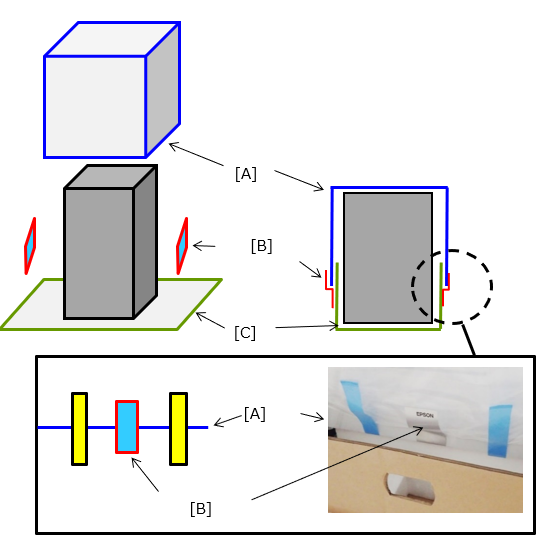
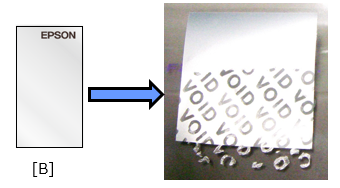
Confirm that there is no alteration from factory shipment to installation by “no security label peeling”. The placement position on the security label is as shown below. The unpacking work can be done by a service engineer. *”VOID” appears when peeled off the security label.
A: Plastic bag B: Security label C: Plastic sheet |
||||||
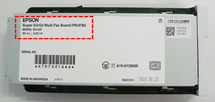
| 3 | Checking the name and model number of the fax board | To use ISO15408 certified state | None |
Fax Board
|
|||||||
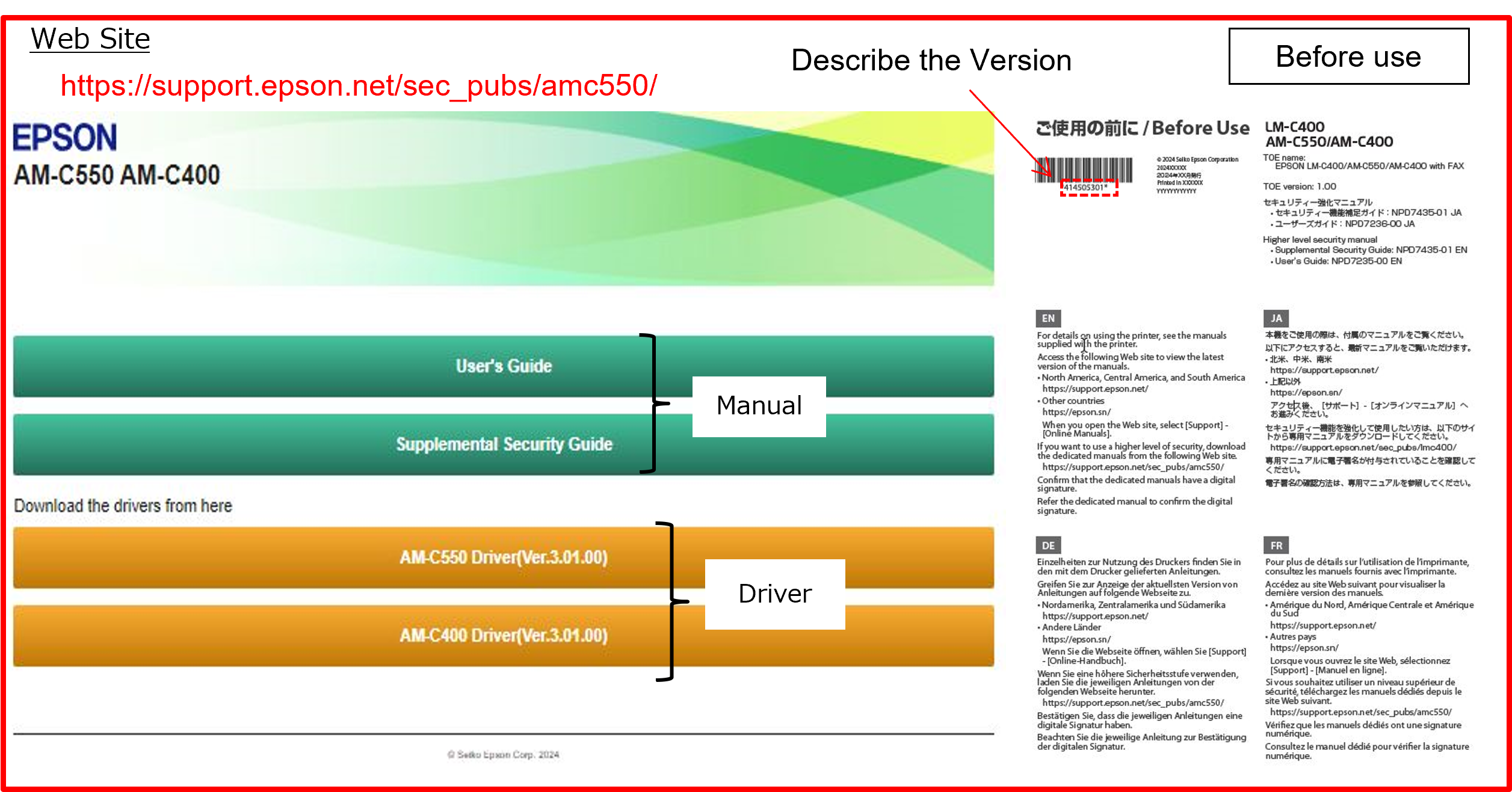
| 4 | Downloading certified manuals (Refer "Before Use"sheet) | Make installation and settings using certified manuals | It is necessary to prepare the PC which is connectable to the internet and downloadable the manual by administrator |
Note that, the certified version of each manual is as follows;
|
|||||||
| 5 | Checking digital certificates for the manuals | Confirm the manuals has not been altered. | It is necessary to prepare the PC which is connectable to the internet and downloadable the manual by administrator | The certified version of each manual is as follows
|
|||||||
| 6 | Receive the certified firmware from CE and confirm the digital signature | Confirm the firmware has not been altered. | Need time to confirm by administrator. | Yes | Download certified firmware (or latest firmware) from Tech Exchange beforehand, and bring it.
|
||||||
| 7 | Inserting ink cartridges, loading paper, date time setting, ink charge, checking printing operation and inserting Fax board by service person. |
None (usual work) | Yes | There is no problem in the installation procedure described in the service manual. There is no special installation / setting work. |
|||||||
| 8 | Power OFF/ON | None (usual work) | |||||||||
| 9 | Connect peer to peer, between PC and device. | To prevent the setting by non-administrator. There is no restriction on the using PC. |
|
||||||||
| 10 | Updating the firmware to an authenticated version | To use ISO15408 certified state |
|
Confirmed firmware cannot be updated via USB flash drive. Need to prepare PC. | |||||||
| 11 | Making settings on the control panel | ||||||||||
|
|
|
|
Non-administrator cannot change the setting with security setting of the device. Tell administrator not to forget their administrator password. (If the problem persists, contact EPSON Local Service Representatives.) |
|||||||
|
Non-administrator cannot change the setting with security setting of the device. | ||||||||||
|
|
|
If no-operation passed over 3 minutes (default), user will be logged off automatically. | ||||||||
|
|
It takes some time to switch screens. | |||||||||
|
|
Cannot use the shared BOX function. | |||||||||
|
|
A part of maintenance in service mode will be restricted. (e.g., Firmware update via USB devices) |
Following service support functions cannot be used by disabling.
|
||||||||
|
|
Only administrator can turn off the power. | |||||||||
|
|
Automatic firmware update function cannot be used. | |||||||||
| 12 | Making settings using Web Config | ||||||||||
|
|
|
Weak password cannot be set. Need to include 8 or more characters, and need to mix-up uppercase and lowercase alphabet, and numbers and symbols at least one or more. |
||||||||
|
|
None | |||||||||
|
|
If this setting is on, print or scan cannot be done without user authorization. Only administrator can make settings. Only administrator and the user who sent the data to the device can delete the data. |
|||||||||
|
|
The administrator needs to register the users (up to 10) who can use the device and functions (printing, copying, faxing and scanning). The administrator needs to set initial passwords by following password policy, and then announce to users. |
|||||||||
|
|
Only administrator's PC can update the firmware. | |||||||||
|
Folder operations (creation, etc.) cannot be performed using PDL. | ||||||||||
|
|
USB device (USB I/F) and USB host is restricted and cannot be used. | |||||||||
|
|
If tampering is detected, the MFP will no longer start up and will require repairs. | |||||||||
|
|
None | |||||||||
|
Out of certified or evaluation scope | Functions related to IPP (e.g. Print from MacOS, iOS) can not be used. | |||||||||
|
|
Cannot be changed the values through SNMPv1/v2. Due to the above, Epson Device Admin, EpsonNet Config cannot be used to change settings. |
|||||||||
|
|
Functions related to WSD and Open Platform cannot be used. | |||||||||
|
|
Communication with applications that use SNMPv3 will be disabled. | |||||||||
|
Out of certified or evaluation scope | In case of LAN is configured with IPv6, this function cannot be used. | |||||||||
|
|
None | |||||||||
|
|
Cannot send or receive by PC-FAX. Cannot use the fax backup function for each fax transmission. |
|||||||||
|
|
|
The received fax will not be printed automatically. Users who have permission to use fax function need to log on to print. The fax data which failed to transferred is saved in the inbox. |
||||||||
|
|
Functions related to scan and Open Platform cannot be used. | |||||||||
|
|
None (usual work) | |||||||||
|
|
None | |||||||||
|
|
None | |||||||||
|
None | ||||||||||
|
|
Data saved in the polling send box cannot be retrieved from an external fax to print. | |||||||||
|
|
FAX Board Box will be prohibited. | |||||||||
|
|
Failed Fax report will not be printed and stored in the inbox. | |||||||||
|
Out of certified or evaluation scope | Epson Connect cannot be used. | |||||||||
|
|
The device will not be turned off automatically after configured time, it gets to sleep mode. Only administrator can turn off the power. |
|||||||||
|
Out of certified or evaluation scope | Open Platform cannot be used. | |||||||||
|
Out of certified or evaluation scope | Epson Remote Services can be used | |||||||||
| 13 | Restarting the printer | None (usual work) | |||||||||
| 14 | Connecting to an in-house network | None (usual work) | |||||||||
| 15 | Connecting to a phone line | None (usual work) | |||||||||
| 16 | Logging on as an administrator and checking the settings | None (usual work) | |||||||||
| 17 | Checking product information | To use ISO15408 certified state | None (usual work) | Printer status sheet must include following information <Header>
<Version>
|
|||||||
| 18 | Installing the printer driver | None (usual work) | If the user wishes to use under compliance with ISO15408, install the listed driver on the administrator’s PC. However, since the driver is not included in the TOE, the user can use other drivers. |
||||||||