
Menu configuration
Top Menu Screen (WF-C579R Series)
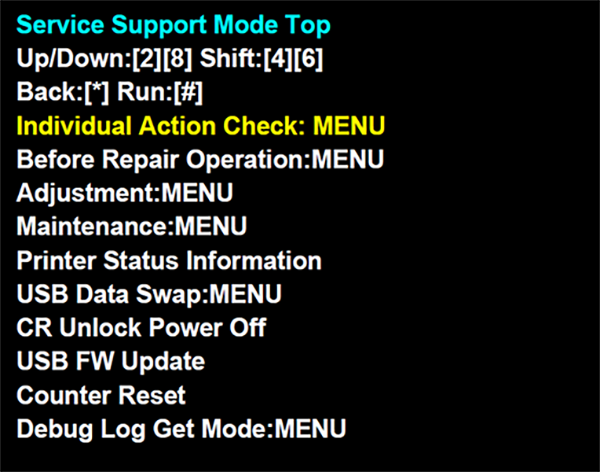
Top Menu Screen (WF-C529R Series)
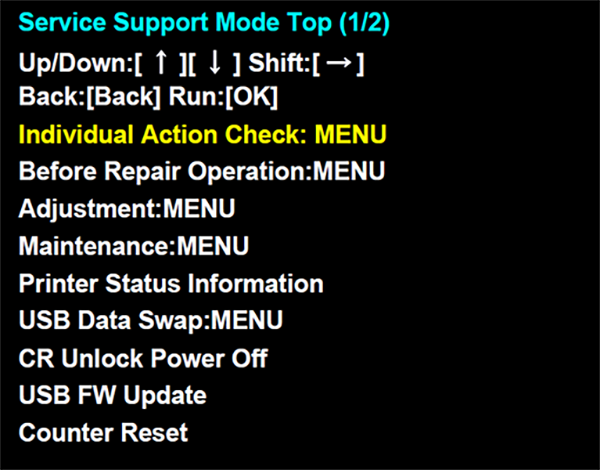
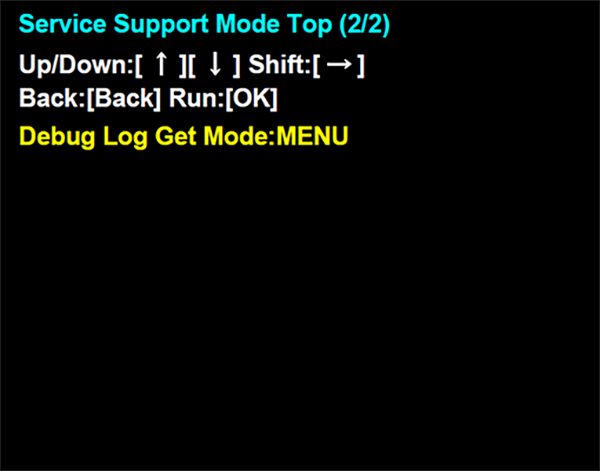
| Display | Overview | Usage situation | Details |
|---|---|---|---|
| Individual Action Check: MENU | Allows you to check whether or not the various motors, sensors, and solenoids are operating normally. | Troubleshooting | Individual Action Check Function |
| Before repair operation: MENU | Perform the supplemental work of parts for which supplemental work is required before performing repair work. | When performing repair work. | Adjustments and Check Items Purpose |
| Adjustment: MENU | Allows you to make the adjustments required when replacing parts. | ||
| Maintenance: MENU | Perform ink filling, cleaning, and other maintenance inside the ink supply system. | ||
| Printer Status Information | Allows you to check the current firmware version and the history of the errors. | Troubleshooting | Printer Status Information |
| USB Data Swap: Menu | Use this to back up the data from the old machine and restore the data on the new machine when exchanging the product or after the Main Board replacement. | When exchanging product and after Main Board replacement | USB Data Swap |
| CR Unlock Power OFF | The printer power is turned OFF with the CR in an unlocked state. | Before troubleshooting and repair work | Individual Action Check Function |
| USB FW Update | Updates the firmware using a USB flash drive without using the PC. | When updating firmware | Firmware Update Using USB Flash Drive |
| Counter reset | Allows you to reset the life counter of the periodic replacement parts after replacing them. | When replacing the periodic replacement parts | Resetting the Counter of Periodic Replacement Parts |
| Debug Log Get Mode: Menu | When performing analysis, allows you to copy the data necessary for analysis to a USB flash drive connected to the main unit. | When requesting analysis | --- |