
Color Deviation
Symptom
- Expected color and printed result differs.
- Printed colors differ when compared with each other.
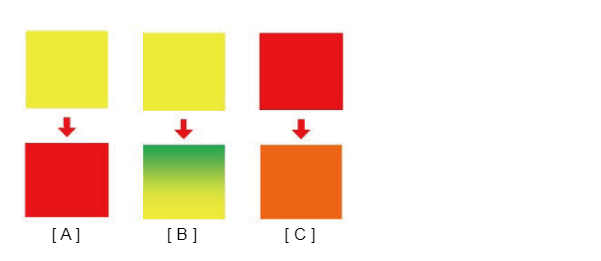
e.g.)
A: Colors are completely different.
B: Another color is mixed creating a gradation.
C: Color is slightly different.
Suspected cause
- Different comparison conditions
- ADF/SCN Unit reading abnormal condition
- Paper type
- Output Setting
- Printhead failure
- Inksystem Assy failure
- Air bubbles collected in ink tubes
Troubleshooting
| Step | Confirmation and action | YES | NO | ||
|---|---|---|---|---|---|
| 1 | Check whether printing or copying Check whether the symptom occurs with printing or with copying. |
Occurs with printing and copying Go to step 2 |
Occurs with copying only Refer to ADF / Scanner Trouble |
||
| 2 | Check the settings Check the settings of the main unit/printer driver listed below.
Are the printer/driver settings appropriate? |
Go to step 3 | Change the settings. If the symptom continues to occur after performing the above, go to step 3. |
||
| 3 | Check the paper Check the following point about the paper.
Nozzle condition is excellent? |
Go to step 4 | Change the paper to suitable paper. If the symptom continues to occur after performing the above, go to step 4. |
||
| 4 | Check the nozzle check pattern Print nozzle check patterns and check whether there are nozzles missing or deflection. Nozzle condition is OK? Nozzle check pattern print method is below.
|
Go to step 5 | Obtain the information as follows from the service status sheet and execute head cleaning according to the nozzle missing state check matrix table.
*If nozzle missing is not improved, refer to Nozzles Missing. If the symptom continues to occur after performing the above, go to step 5. |
||
| 5 |
Check the Inksystem Assy Check the following point about the Inksystem Assy.
[Confirmation details]
|
Go to step 6 |
If nozzle missing is not improved after performing the above, go to step 6. |
||
| 6 | Check the ink tubes Visually check that air bubbles have not collected in the ink tubes. If there are parts where the color is unmistakably pale in the supply system ink tubes, air bubbles may have collected. Ink tube is correct condition? |
Go to step 7 | In the service support mode, execute C06 Strong head cleaning (C03 CL1/C04 CL2/C05 CL3/C06 STRONG CL/C07 (HEAD CLEANING)) to remove the bubbles in the tubes. If nozzle missing is not improved after performing the above, go to step 7. |
||
| 7 | Replace the Printhead Replace the Printhead. |
Replace the Printhead. (Refer to Printhead (WF-C579R Series)/ Printhead (WF-C529R Series)) If the trouble is not resolved after replacing the Printhead, contact the Epson Service Support department. |
|||
