
PERFORMING FIRMWARE UPDATE
 Check Point / チェックポイント Check Point / チェックポイント |
Required time varies depending on the amount of the update content, the option's connection state, etc. |
- Start the printer in the service mode.
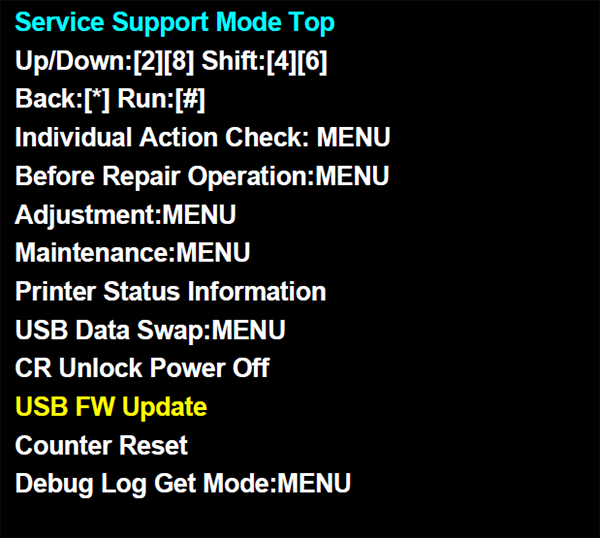
- Select “USB FW Update” from the service support mode top menu.
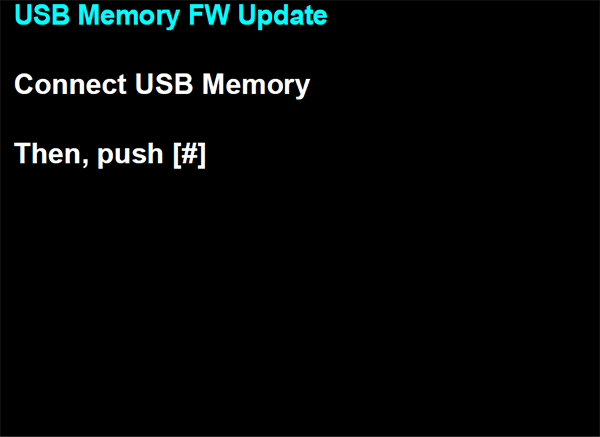
- After the screen below is displayed, connect the USB flash (A) drive where the firmware is saved to the USB port (B) and press the execution button.
- WF-C579R Series
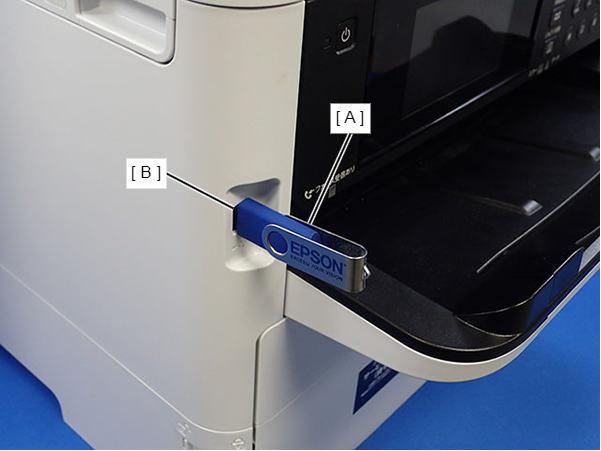
- WF-C529R Series
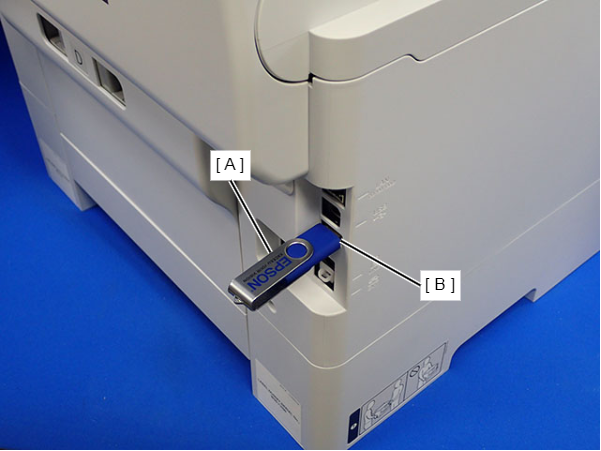
- WF-C579R Series
- The following firmware execution confirmation screen is displayed, and the current firmware version and the updated firmware version are displayed.
After checking the firmware versions, press the execution button to perform the update.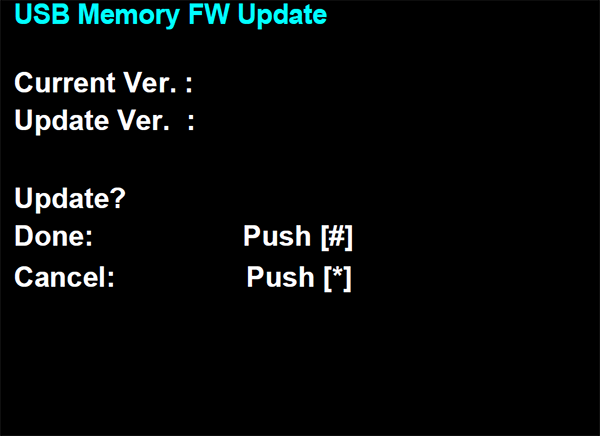
 Caution / 注意
Do not remove the USB flash drive nor turn the printer’s power off during the firmware update.
Firmware update progress screen is displayed. During this process, the power lamp flashes repeatedly.
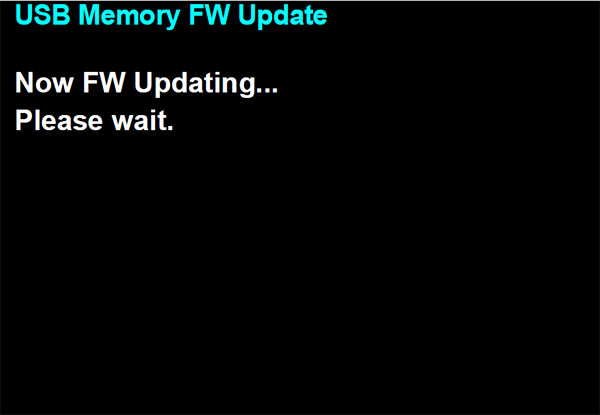
- After the firmware update is complete, the screen below is displayed.
After the screen below is displayed, press the power button to end the firmware update, and turn the power off.
Confirm the printer’s power is completely off, then remove the USB flash drive.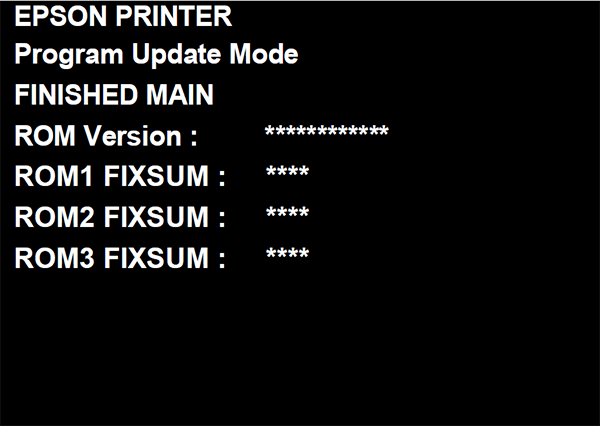 Check Point / チェックポイント
How to check the printer's firmware version
- User Mode
- Nozzle Check Pattern
- Status Sheet
- “Firmware Update” menu
User screen→Settings→General Settings→System Administration→Firmware Update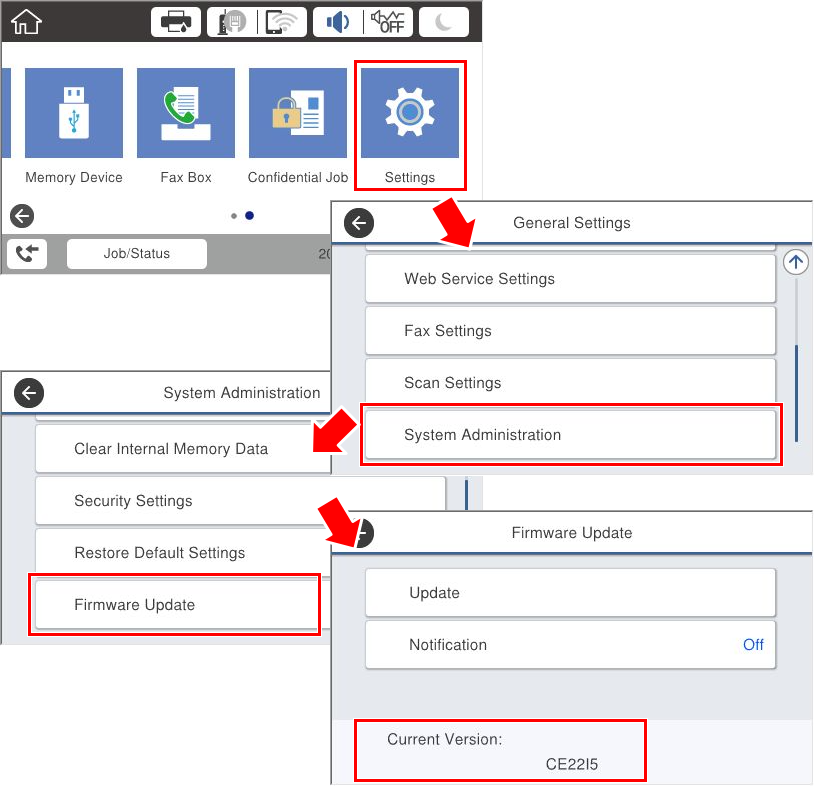
- Service Support Mode
- User Mode