DATA BACKUP PROCEDURE
- Start the printer in the service mode.
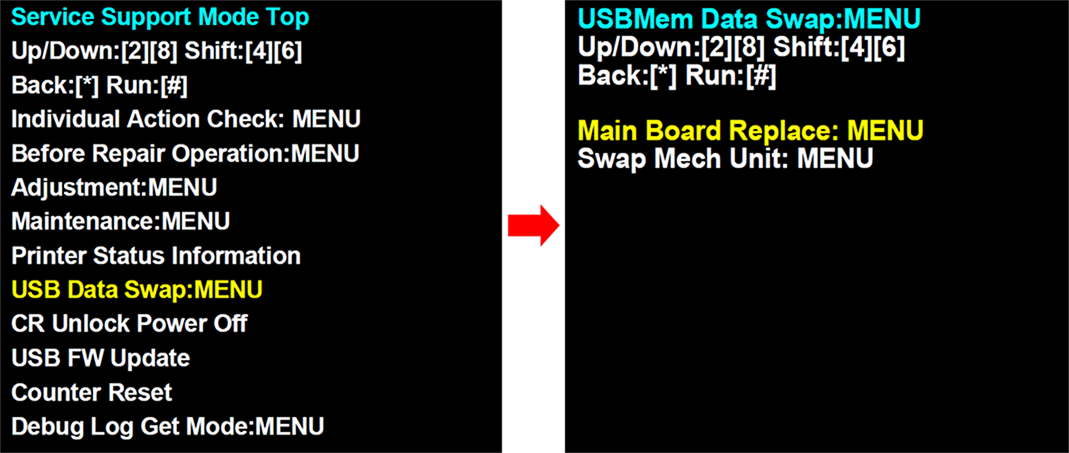
- Select “USB Data Swap: MENU” from service support mode top menu.
- Select Main Board Replace: MENU when replacing the main board. Select Swap Mech Unit: MENU when swapping the printer.
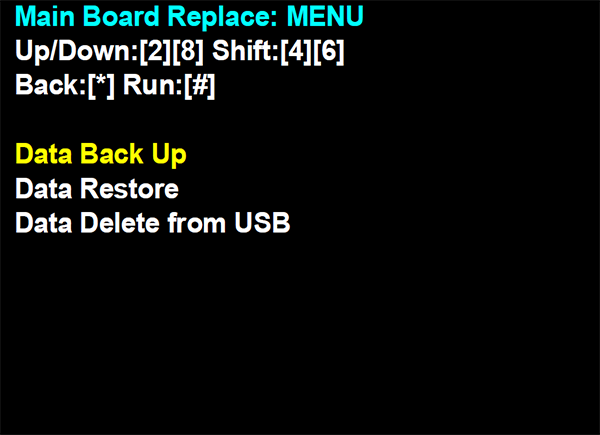
- Select Data Back Up.
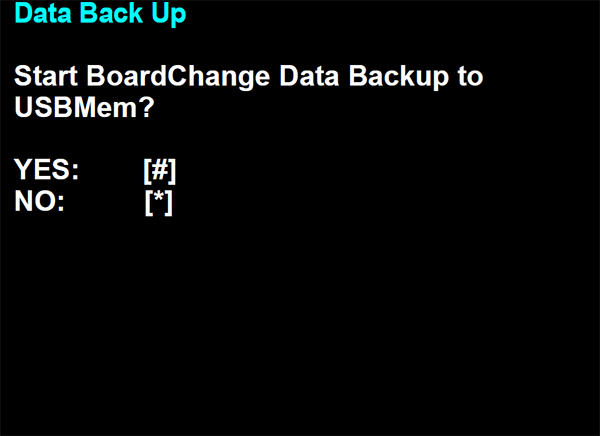
- The following screen will be displayed. Before pushing the execution button, connect the USB flash (A) drive to the USB port (B).
- WF-C579R Series
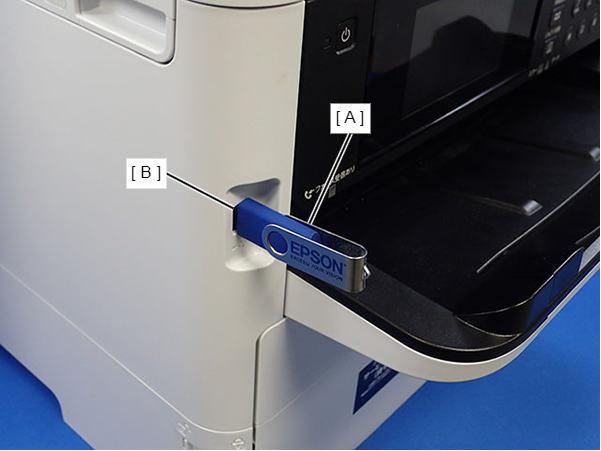
- WF-C529R Series
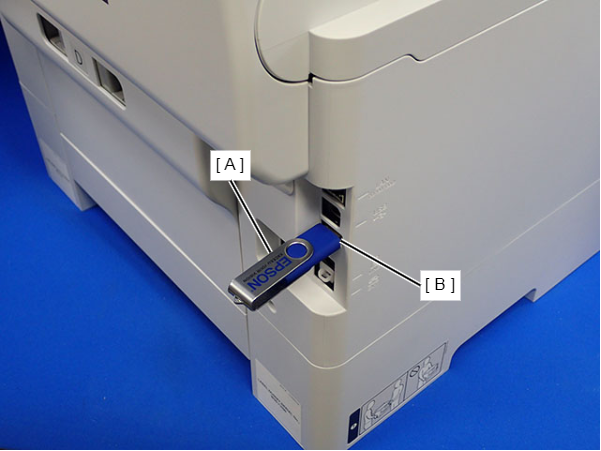
- WF-C579R Series
- Push the execution button and execute the data backup.
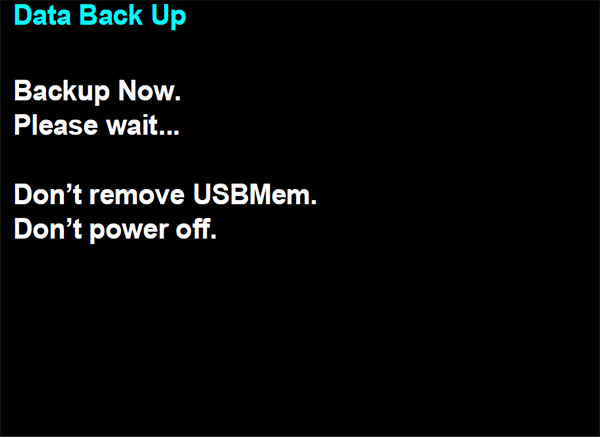
 Caution / 注意
While data backup is underway, do not remove the USB flash drive or turn the power off.
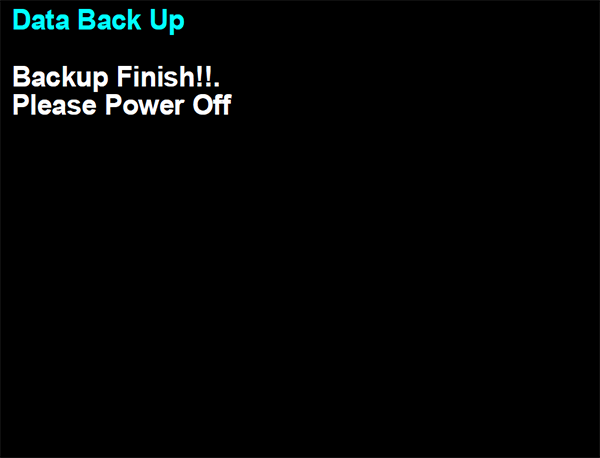
- When the following screen is displayed, turn the power off, and then replace the main board or swap the printer.
 Check Point / チェックポイント
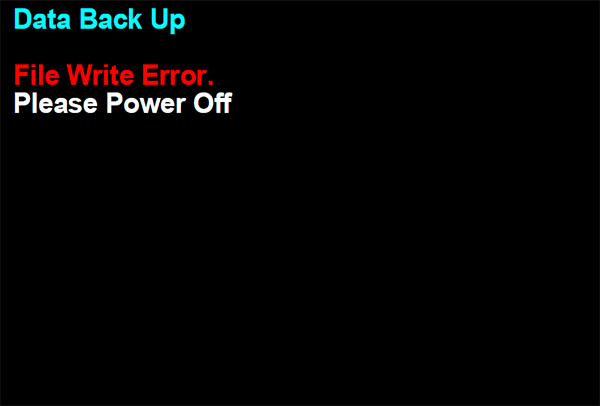
If the following message is displayed, the backup data is already saved to the USB flash drive and it cannot be overwritten. Therefore, delete the backup data from data delete menu (USB data deletion), and execute the data backup again.