
Product Configuration (Name of Each Part)
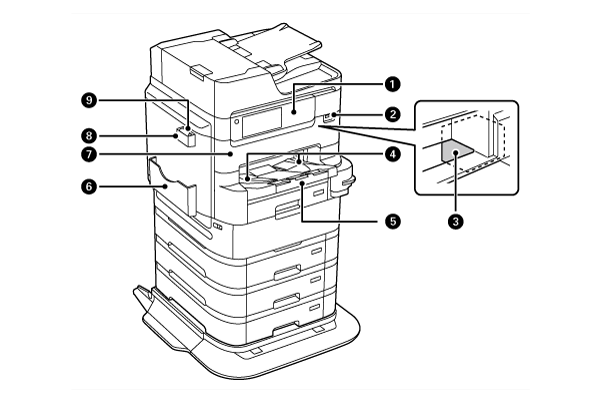
| No. | Name | Description |
|---|---|---|
| 1 | Control Panel | Allows you to make settings and perform operations on the printer. Also displays the printer’s status. |
| 2 | External interface USB port |
Insert external memory. |
| 3 | Print head | Fires ink. |
| 4 | Paper Ejection Guide | Holds the printed paper. |
| 5 | Output tray | Holds the printed paper. Holds the ejected paper. When you start printing paper larger than A4 size, this tray is ejected automatically. To store the tray, push it inmanually. |
| 6 | Document holder | Used to place the manuals. |
| 7 | Front Cover (A) | Open to remove paper jammed inside. |
| 8 | Cleaning cloth holder | Used to place the cleaning cloth. |
| 9 | Cleaning cloth | Used to clean the surface of the scanner glass. |
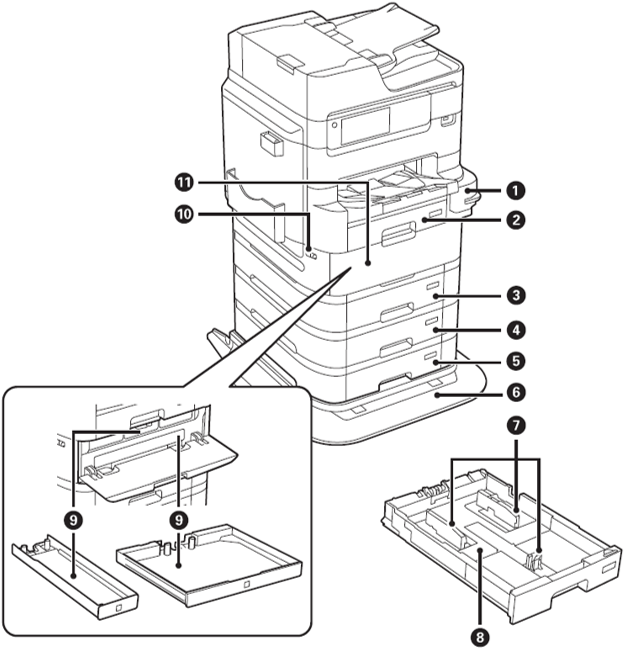
| No. | Name | Description |
|---|---|---|
| 1 | Manual stapler |
Staples printed paper. |
| 2 | Paper Cassette 1 (C1) | Loads paper. |
| 3 | Paper Cassette 2 (C2) | |
| 4 | Paper Cassette 3 (C3) (option) |
Loads paper. Optional additional cassette. Can be used when options are installed. |
| 5 | Paper Cassette 4 (C4) (option) |
|
| 6 | Printer Stand | An exclusive printer stand (with casters) to prevent overturning. Can be used when options are installed. |
| 7 | Edge guides | Feed the paper straight into the printer. |
| 8 | Paper Cassette | Loads paper. |
| 9 | Ink Pack Tray | Used to set the ink packs. |
| 10 | Cover Lock | Used to lock the ink pack cover. |
| 11 | Ink Pack Cover (P) | Opened when replacing the ink pack. |
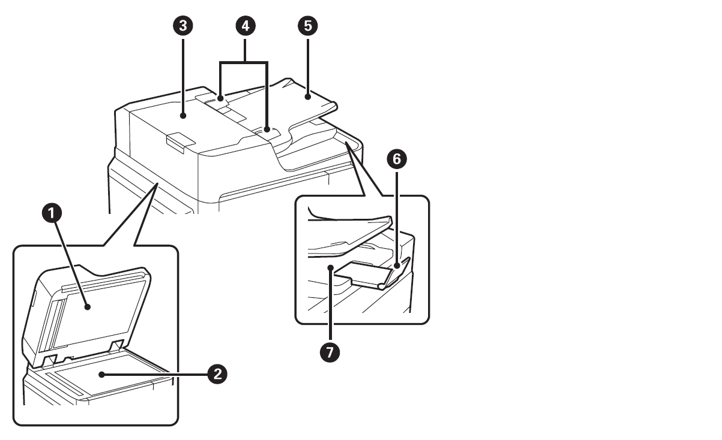
| No. | Name | Description |
|---|---|---|
| 1 | Document cover | Blocks the light from outside during scanning of documents. |
| 2 | Scanner Glass | Place the originals. You can place the originals that are not fed from the ADF such as envelopes or thick books. |
| 3 | ADF (Automatic Document Feeder) cover |
Opened to remove the documents trapped in ADF. |
| 4 | ADF edge guides | Feed originals straight into the printer. Slide to the edges of the originals. |
| 5 | ADF input tray (F) | Feeds originals automatically. |
| 6 | Stopper | Prevents the ejected originals from falling from the ADF output tray. |
| 7 |
ADF output tray |
Holds originals ejected from the ADF. |
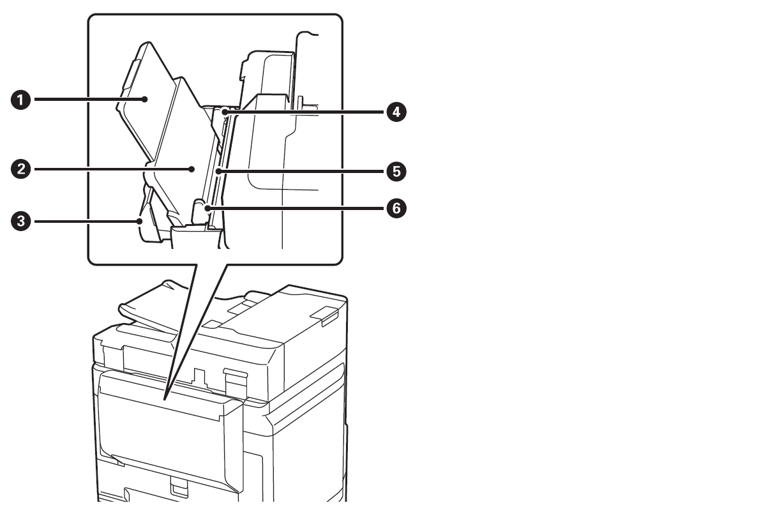
| No. | Name | Description |
|---|---|---|
| 1 | Paper Support | Supports the set paper. |
| 2 | Paper tray (B) | Loads paper. |
| 3 | Paper tray cover | Prevents foreign matter from entering inside. Usually closed during use. |
| 4 | Edge guides | Feeds the paper straight into the printer. Slide to the edges of the paper. |
| 5 | Paper Feed Inlet Cover | Prevents foreign matter from entering inside. Usually closed during use. |
| 6 | Edge guides | Feed the paper straight into the printer. Slide to the edges of the paper. |
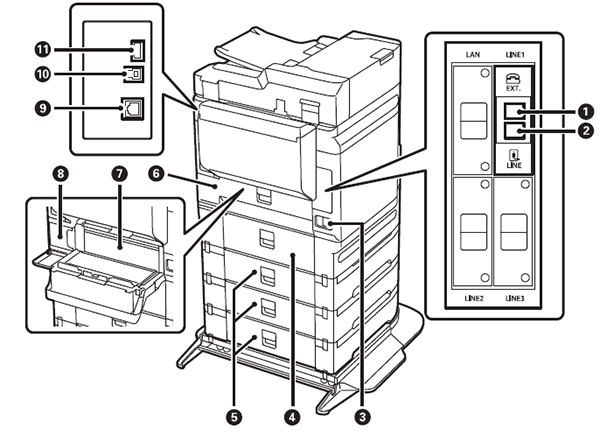
| No. | Name | Description |
|---|---|---|
| 1 | EXT. Port | Connects external phone devices. |
| 2 | LINE Port | Connects a phone line. |
| 3 | AC inlet | Connects the power cord. |
| 4 | Rear Cover (D3) | Open when removing jammed paper. |
| 5 | Rear Cover (E) | |
| 6 | Rear Cover (D1) | Open when replacing the maintenance box or removing jammed paper. |
| 7 | Duplexing unit (D2) | Remove when removing jammed paper. |
| 8 | Maintenance Box | Collects the waste ink discharged at the time of cleaning or printing. |
| 9 | LAN Port | Connect a LAN cable. |
| 10 | USB Port | Connects a USB cable. |
| 11 | Service USB port | USB port for future use. Do not remove the sticker. |
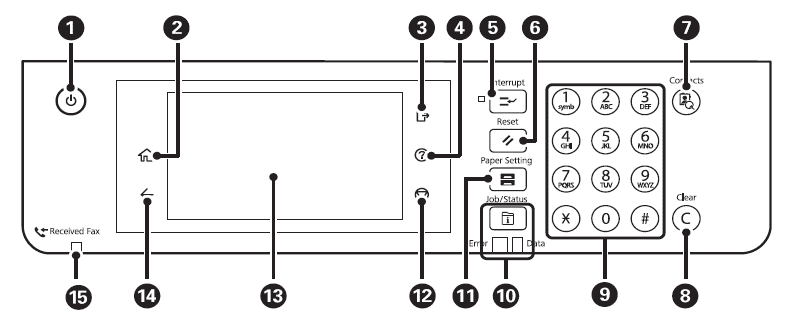
| No. | Description |
|---|---|
| 1 | Turns the power on/off. |
| 2 | Displays the Home screen. |
| 3 | Used to log off from the printer when [User access control] is enabled. |
| 4 | Displays the [Help] screen. The actions to take in the case of a problem, or the basic operating procedures of the printer can be checked. |
| 5 | Used to suspend a job in progress, and interrupt and execute another job. If you press this button after the interrupt operation has ended, the suspended operation is resumed. |
| 6 | Restores the setting being operated to the state before the change. If the user default settings have not been made, this button returns the settings to those at the time of purchase. |
| 7 | Displays the [Address book] search screen. Addresses can be registered, edited, and deleted. |
| 8 | Clears the number of copies and other numerical value settings. |
| 9 | Enters numbers, alphabet letters, and symbols. |
| 10 | Displays the [Job/State] menu. Allows the printer state and job history to be checked.
|
| 11 | Displays the [Paper settings] screen. Allows the paper size and paper type to be set for each paper feed device. |
| 12 | Used to suspend the operation that is currently in progress. |
| 13 | Displays items and messages. You can change the angle of the control panel. If no operation is performed for a fixed period of time, the sleep mode is activated and the display is cleared. Tap anywhere on the touch screen to turn on the display. Depending on the settings, it is possible to return to the original brightness from the sleep mode by pressing a button on the operation panel. |
| 14 | Returns to the previous screen. |
| 15 | Lights up when an unprocessed (unread, not printed, or not saved) document is received. |