
EP-C800 Series
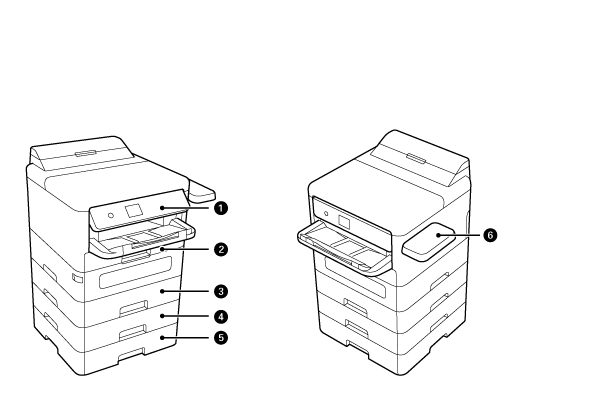
| No. | Name | Explanation |
|---|---|---|
| 1 | Operation Panel | Operates the printer. You can change the angle of the panel. |
| 2 | C1 Cassette |
Loads paper. |
| 3 | C2 Cassette | Optional paper cassette unit. Loads paper. |
| 4 | C3 Cassette | |
| 5 | C4 Cassette | |
| 6 | Authentication Device Table-P2 (Optional) |
Allows you to attach an authentication device supported by the printer. You can then log on to the printer by holding an authentication card over the printer. |
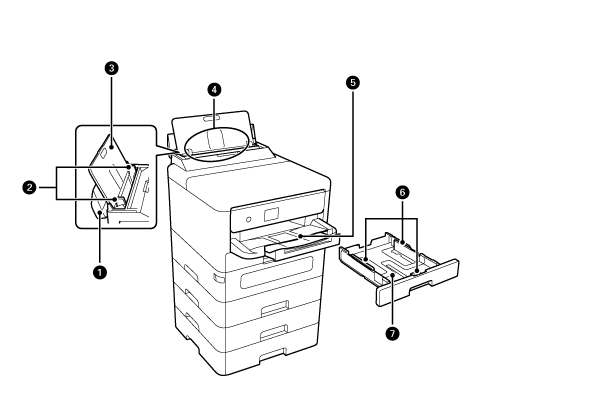
| No. | Name | Explanation |
|---|---|---|
| 1 | Paper tray cover | Prevents foreign substance from entering the printer. Usually keep this cover closed. |
| 2 | Edge guides | Feeds the paper straight into the printer. Slide to the edges of the paper. |
| 3 | Paper support | Supports loaded paper. |
| 4 | Paper tray (B) | Loads paper. |
| 5 | Eject Tray | Holds the ejected paper. |
| 6 | Edge guides | Feeds the paper straight into the printer. Slide to the edges of the paper. |
| 7 | Paper cassette | Loads paper. |
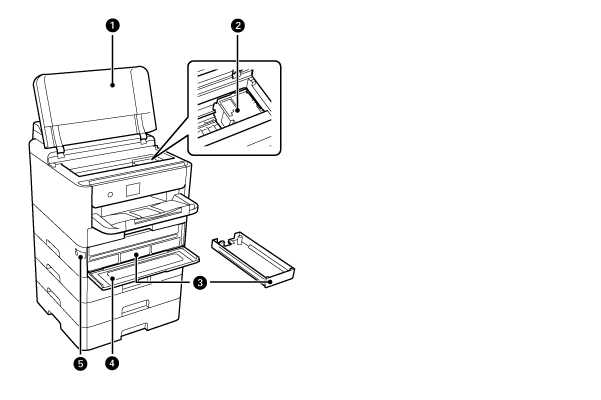
| No. | Name | Explanation |
|---|---|---|
| 1 | Printer cover (J) | Open when removing jammed paper inside the printer. |
| 2 | Printhead | Fires ink. |
| 3 | Ink Pack Tray | Sets an ink supply unit. |
| 4 | Ink cover (A) | Open when replacing ink supply units. |
| 5 | Cover lock | Locks the ink cover. |
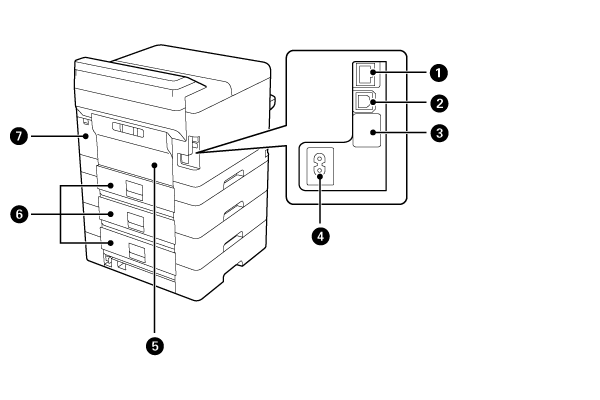
| No. | Name | Explanation |
|---|---|---|
| 1 | LAN port | Connects a LAN cable. |
| 2 | USB port | Connects a USB cable to connect with a computer. |
| 3 | USB port | USB port for future use. Do not remove the sticker. |
| 4 | AC inlet | Connect the power cable. |
| 5 | Rear Cover (D) | Open when removing jammed paper. |
| 6 | Rear cover (E) | Open when removing jammed paper. |
| 7 | Maintenance Box Cover(H) | Open when replacing the maintenance box. |
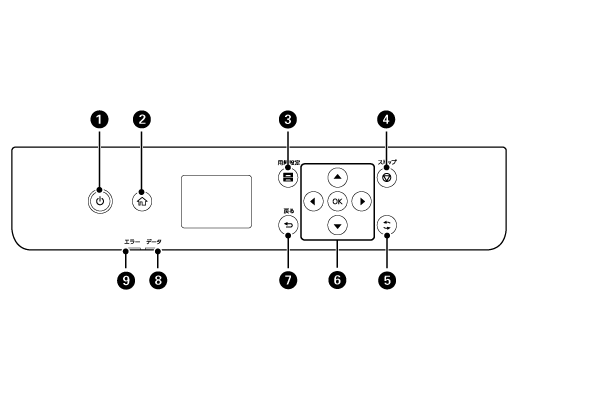
| No. | Explanation |
|---|---|
| 1 | Turns the printer on or off. |
| 2 | Displays the home screen. |
| 3 | Displays the Paper Setting screen. You can select the paper size and paper type settings for each paper source. |
| 4 | Stops the current operation. |
| 5 | Applies to a variety of functions depending on the situation. |
| 6 | Selects the items. Press OK to confirm your selection or run the selected feature. |
| 7 | Returns to the previous screen. |
| 8 | Flashes when the printer is processing data. It turns on when there are queued jobs. |
| 9 | Turns on or flashes when an error occurs. |