
What to do when firmware update fails
If the firmware update fails for some reason, such as power-off during the firmware update, follow the procedure below to recover.
- After the firmware update fails, start the printer normally.
- If "Program Update/Recovery Mode MAIN" is displayed: Go to Step 2
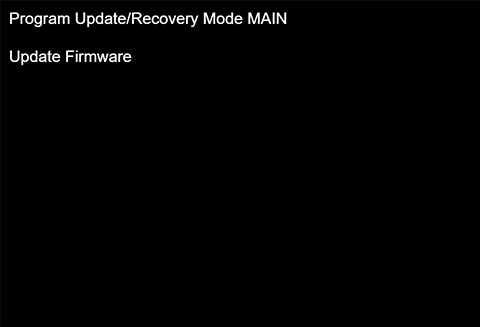
- If "EPSON DEVICE Recovery Mode" is displayed:Since firmware update using a USB memory device is not possible, proceed to step 4

- If "Program Update/Recovery Mode MAIN" is displayed: Go to Step 2
- Start the service support mode. (Starting Service Support Mode)
- Select [08 USB Memory FW Update] to update the firmware.
If the firmware update is successful, finish the work. - Connect the printer to a PC with a USB cable.
- Run the firmware package (.exe or .dmg).
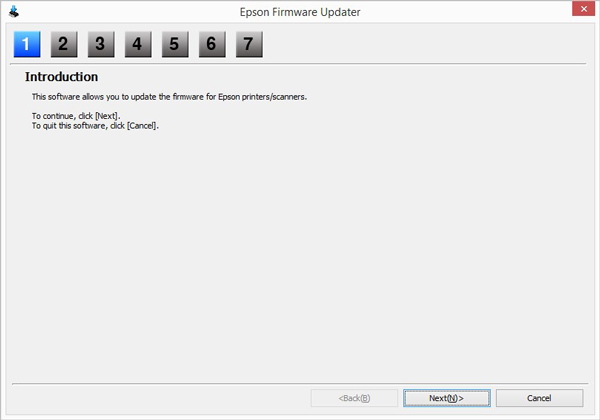
- When the updater starts, click [Next].
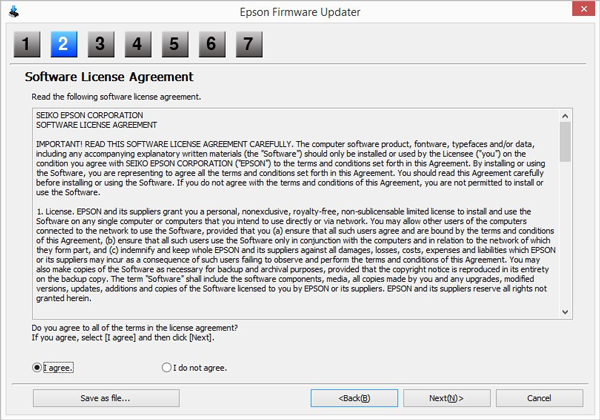
- Read the license agreement, select [Agree], and then click [Next].
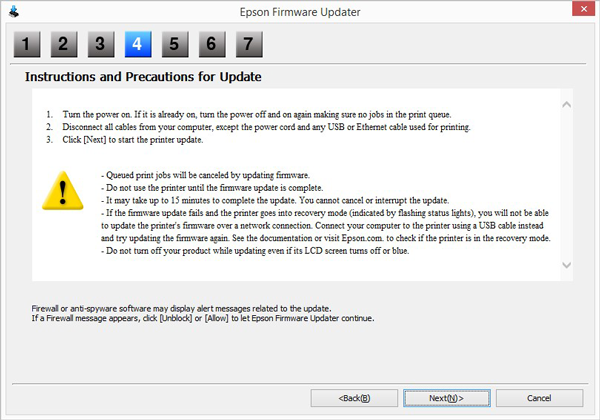
- Read the notes and click [Next].
- Information about the firmware to be installed and the currently connected printer is displayed. Check the checkbox and click [Start]. The firmware update is initiated.
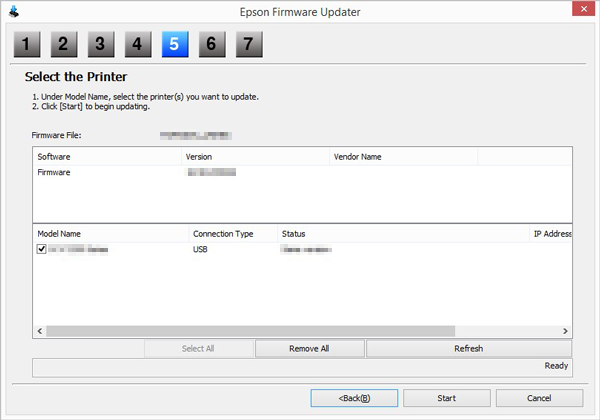
- When the update is complete, the printer will automatically restart.
- Click [Finish] on the firmware updater to exit.