
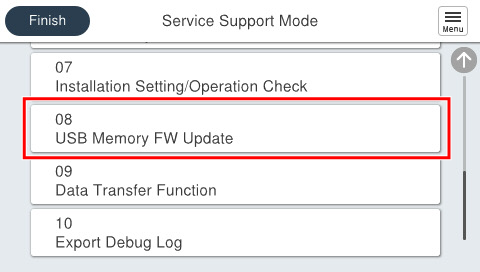
08 USB Memory FW Update
 important / 重要 important / 重要 |
|
Preparation
 Check Point / チェックポイント Check Point / チェックポイント |
|||||||||
|
|||||||||
- Connect the USB memory to the PC, and create a folder named with the following product names in the hierarchy immediately below the USB memory.
EM-C800 Series: FWCK19TL
EP-C800 Series: FWCK21TL
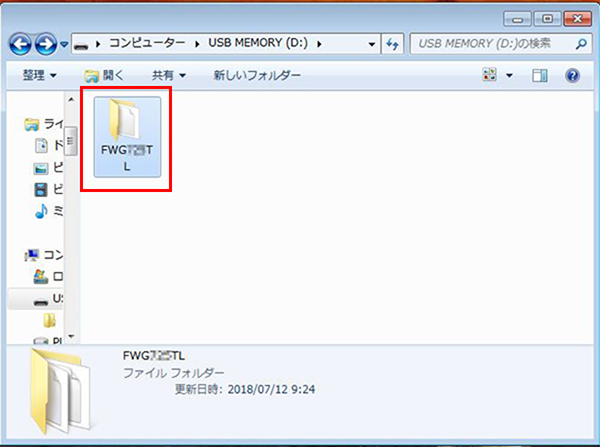
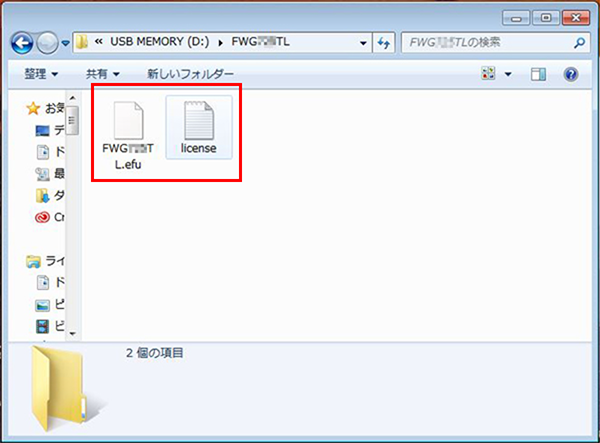
- Store the two firmware data and the license data in the folder.
Procedure
- Start service support mode. (Starting Service Support Mode)
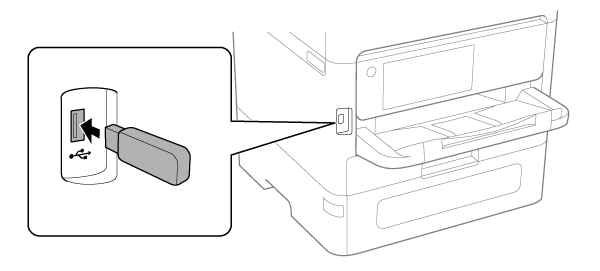
- Connect the prepared USB memory to the USB port.
- EM-C800 Series
- EP-C800 Series
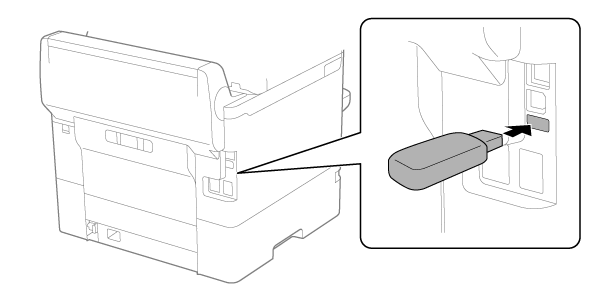
Check Point / チェックポイントFor EP-C800 Series, peel off the piece of tape on the USB port before connecting the USB memory.
- EM-C800 Series
- Select [08 USB Memory FW Update].
- Press [Start].
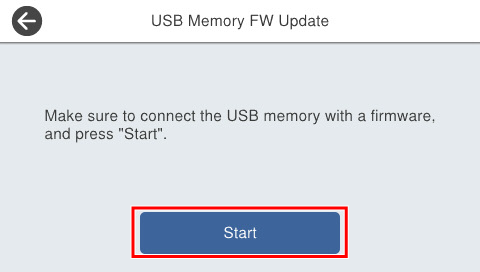
- The firmware execution confirmation screen is displayed, and the current firmware version and the updated firmware version are displayed.
- Check the firmware version, and select [Execute] to start updating.
- After the firmware update is completed, restart automatically.
- Once the product restarts, disconnect the USB memory.