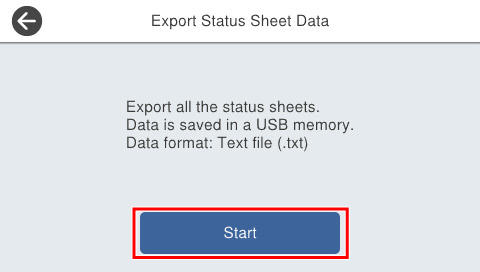
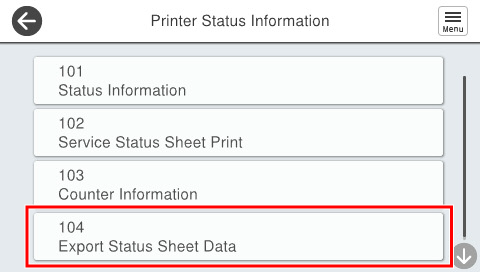
104 Export Status Sheet Data
Save the status sheet of this product to a USB memory in txt. format.
Status sheet to be saved
| No. | Status Sheet Name | The string to be displayed in the output file | Remarks |
|---|---|---|---|
| 1 | Printer information sheet | (Product name)_(Serial No)_(Date and time)_PrinterConfigurationSheet_(Language).txt | --- |
| 2 | Consumables information sheet | (Product name)_(Serial No)_(Date and time)_SupplyStatusSheet_(Language).txt | --- |
| 3 | Usage history sheet | (Product name)_(Serial No)_(Date and time)_UsageHistorySheet_(Language).txt | --- |
| 4 | Service Status Sheet | (Product name)_(Serial No)_(Date and time)_ServiceStatusSheet_(Language).txt | --- |
| 5 | Network Status Sheet | (Product name)_(Serial No)_(Date and time)_StdNetworkStatusSheet_(Language).txt | --- |
| 6 | Fax Setting List | (Product name)_(Serial No)_(Date and time)_FaxSettingList_(Language).txt | EM-C800 Series only |
| 7 | Communication Log (fax) | (Product name)_(Serial No)_(Date and time)_FaxCommunicationLog_(Language).txt | |
| 8 | Communication Results (fax) | (Product name)_(Serial No)_(Date and time)_FaxCommunicationResult_(Language).txt | |
| 9 | Protocol trace | (Product name)_(Serial No)_(Date and time)_StdProtocolMonitorLog_(Language).txt | |
| 10 | Protocol Monitor Log (Optional FAX 1) | (Product name)_(Serial No)_(Date and time)_Opt1 ProtocolMonitorLog_(Language).txt |
Data acquisition procedure
- Start service support mode. (Starting Service Support Mode)
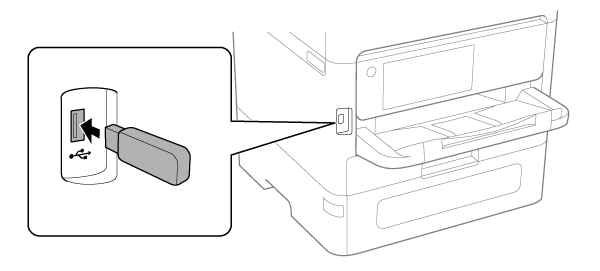
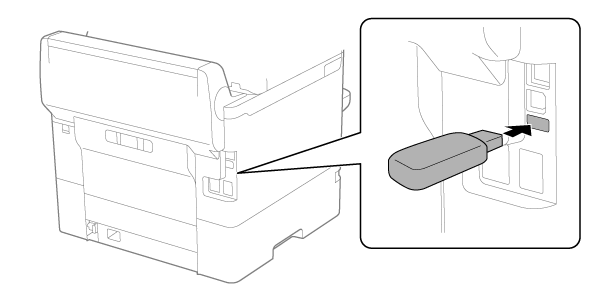
- Connect a USB memory to the USB port.
- EM-C800 Series
- EP-C800 Series
 Check Point / チェックポイント
For EP-C800 Series, peel off the piece of tape on the USB port before connecting the USB memory.
- EM-C800 Series
- Select [01 Printer Status Information].
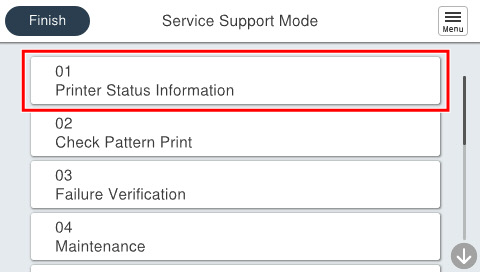
- Select [104 Export Status Sheet Data].
- Press [Start].