USB F/W Update
By using USB Memory, WF-C879Ra/WF-C879R can be updated firmware without Internet connection.
Refer to USB F/W Update procedure below.
 Caution / 注意 Caution / 注意 |
When updating the firmware, perform the update with the permission of the user. |
- USB setup
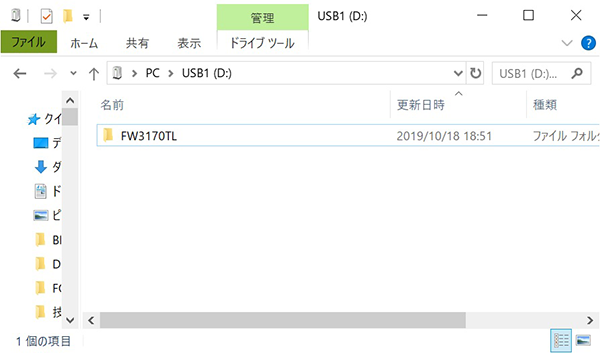
Insert USB memory to PC, and create new folder.
 Caution / 注意
- The name of the folder must be "FW3170TL".
- Folder must be directly below USB memory.
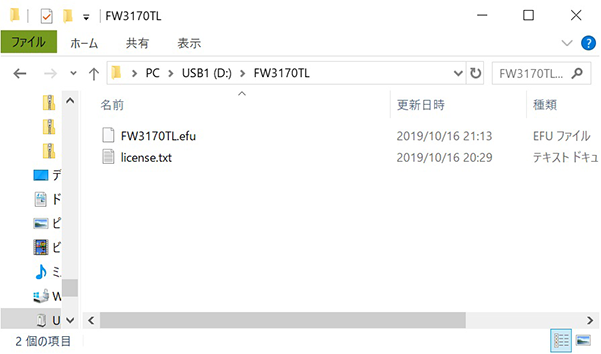
Copy firmware data& license data into the folder.
 Caution / 注意
- Both of firmware data& license data must be copied in the folder. Do not copy any other data in the folder.
- Check that the firmware data and license data have the following names. If the name is different, please change it to the name below.
- Firmware data: “ FWH254TL.efu
- License data: license.txt
- Use firmware data& license data with original (delivered) combination as they have combination limitation.
- Perform Firmware Update
- Boot up the printer in service support mode.
- Select the “USB FW Update” on the Service Support Mode.
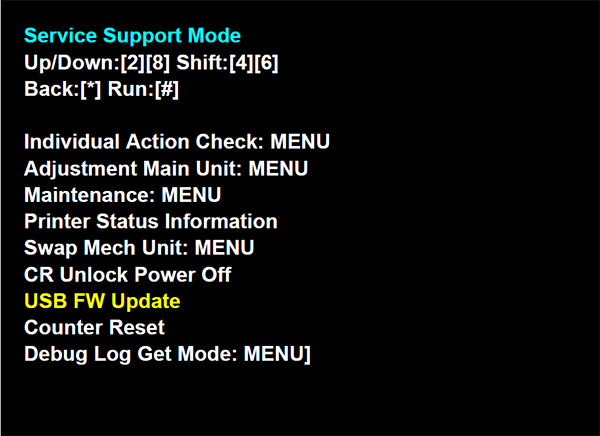
- Connect the USB memory to product when the screen is displayed, put [#] button.
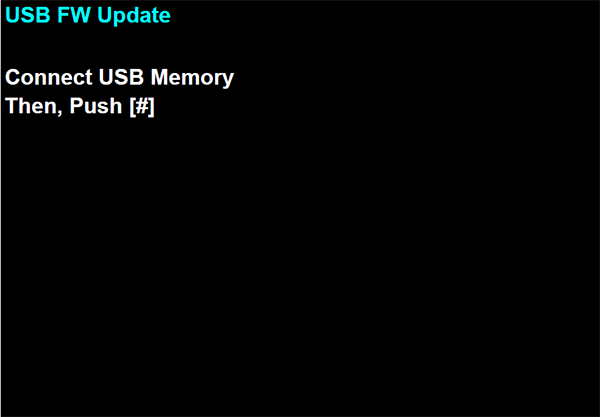
- Firmware Update execute screen will be shown.(Current firmware data version and update data version will be shown)
Push the [#] button and execute firmware update.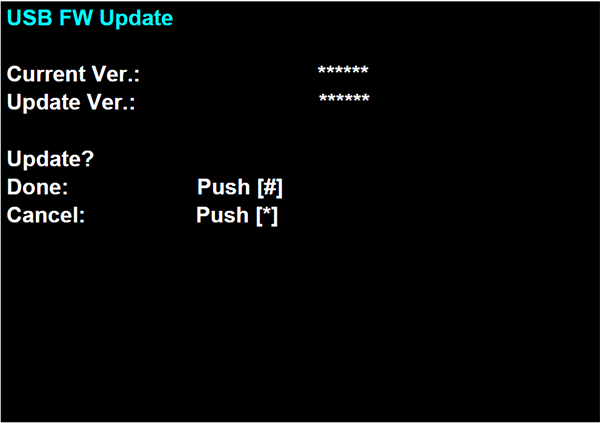
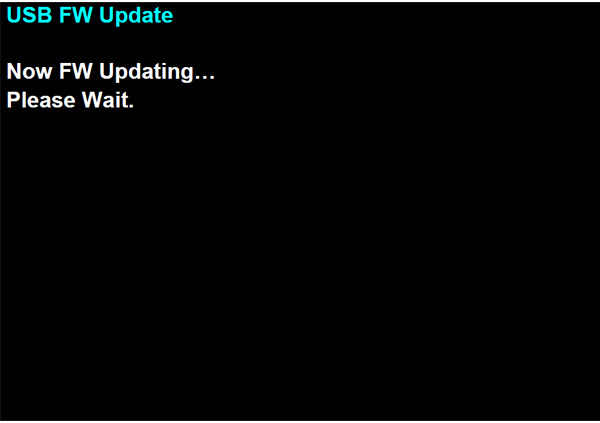
Firmware update process screen will be shown.
 Caution / 注意
Do not remove USB memory, or power off the printer during firmware update.
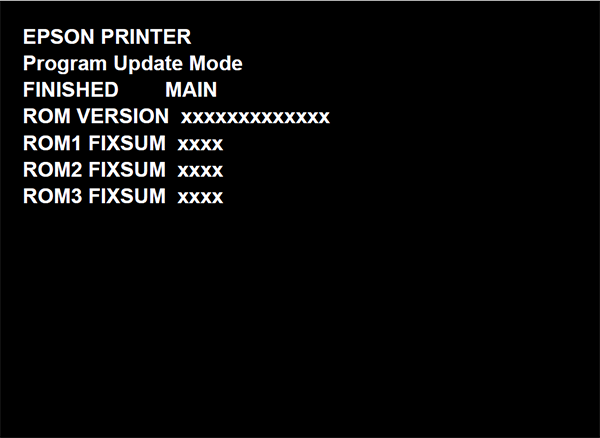
- Below screen will be shown after complete firmware update. Push [0] button and finish firmware update when it's shown.