
Nozzles missing
Symptom
- Nozzles missing
Suspected cause
- Head nozzle clogging
- Ink system assy malfunction
- Air bubbles collected in ink tubes
- Head defective
Troubleshooting
| Step | Confirmation and action | Yes | No |
|---|---|---|---|
| 1 | Check implementation of printing troubleshooting (answer and handing an incoming call) Check implementation of printing troubleshooting at an incoming call. Has printing troubleshooting been performed? |
If not, this is to be dealt with by a service engineer. Go to step 2 |
Get a service engineer to perform printing troubleshooting. If the symptom continues to occur after performing the above, go to step 2. |
| 2 |
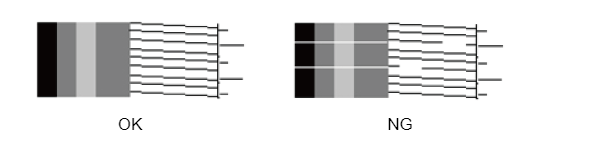
Check the nozzle check pattern Print nozzle check patterns and check whether there are nozzles missing or deflection.
|
End (No reproduction) |
Obtain the information as follows from the service status sheet and execute head cleaning according to the nozzle missing state check matrix table.
If nozzle missing is not improved, go to step 3. |
| 3 |
Check the Inksystem Assy Check the following point about the Inksystem Assy. Inksystem Assy is correct condition? [Confirmation details]
|
Go to step 4 |
If nozzle missing is not improved after performing the above, go to step 4. |
| 4 | Check the ink tubes Visually check that air bubbles have not collected in the ink tubes. (If there are parts where the color is unmistakably pale in the supply system ink tubes, air bubbles may have collected.) Ink tube is correct condition? |
Go to step 5 | Execute strong head cleaning and then check that the bubbles have been removed from inside the tubes. If nozzle missing is not improved after performing the above, go to step 5. |
| 5 | Replace the Printhead |
Replace the Printhead. (Refer to Print Head.) If the trouble is not resolved after replacing the Printhead, contact the Epson Service Support department. |
|
Nozzle missing state check matrix table
| Cleaning history (strongest cleaning within 3 days, out of 5 history items) |
Nozzle missing state | |||||
|---|---|---|---|---|---|---|
0(E0)*² |
1(E1)*² |
2(E2)*² |
3(E3)*² |
4(E4)*² |
||
A |
None | A-0*¹ | A-1 | A-2 | A-3 | A-4 |
| B | CL/CL2 | B-0*¹ | B-1 | B-2 | B-3 | B-4 |
| C | CL3 | C-0*¹ | C-1 | C-2 | C-3 | C-4 |
| D | Strong CL | D-0*¹ | D-1 | D-2 | D-3 | D-4 |
- *1: Even if there were no missing nozzles in “Nozzle Verification Technology” detection, execute when there are print defects (cleaning is not necessary if there are not).
- *2: If nozzle check was not successfully performed, the number of the most recently successfully detected rank is displayed after "E". (E0, E1, etc.).
If "E" is displayed continuously, the head may be malfunctioning.
Examples of actions to be taken:
- A-0, 1: Running CL1 is recommended
- A-2, 3: Running CL2 is recommended
- A-4, B-0~4: Running CL3 is recommended
- C-0~4: Running Power CL is recommended
- D-0~4: Recommend to perform judgment before head replacement
- “*3”: Rank “FF” is also displayed when [B80 Print Head Seq] has not been performed or the adjustment has not been completed normally after Print head replacement.
In that case, perform the adjustments related to the rank judgment [B26 Nozzle Noise Check], [B27 Nozzle Rank Categorise], and [B28 Nozzle Detect Check].
How to view the nozzle missing state matrix table
- Check the cleaning history and the nozzle missing dot rank.
It can be checked by remote monitoring or Usage History Sheet (total pages: 2 sheets).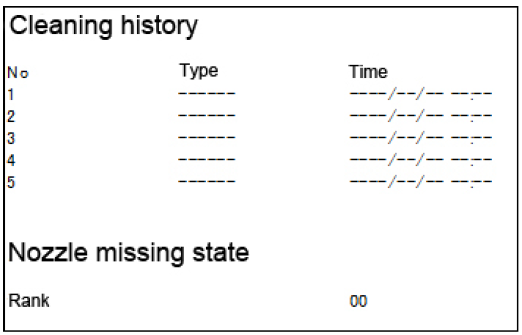
- Check the place where the checked cleaning history and nozzle missing state (rank) intersect in the matrix table.
- Refer to the item at the intersecting place and perform the recommended measure.
Example) If the strongest cleaning within 3 days was Head Cleaning CL2 and the nozzle rank was 02, the place of intersection is B-2 so execute the recommended Head Cleaning CL3.