
Stackability poor
Symptom
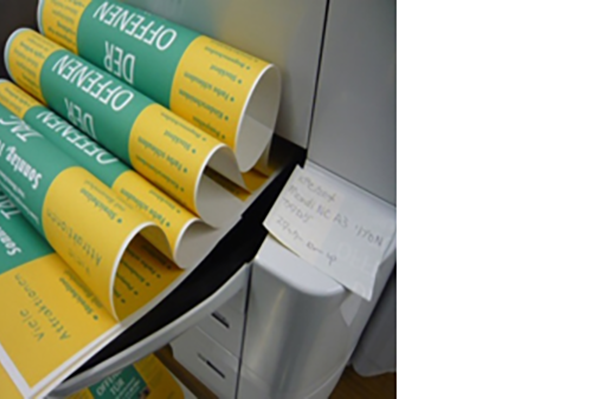
- Paper is output with the leading edge curled.
- Alignment property of paper is poor, and varies vertically and horizontally.
Cause
- Environment
- Paper Type
- Output Setting
- Output tray damaged or failure
Troubleshooting
| Step | Check and measure | Yes | No |
|---|---|---|---|
| 1 |
Check the stacker position Check that the stacker is attached correctly. |
Go to step 2 |
Reattach the stacker correctly. |
| 2 | Check the paper
|
Go to step 3 |
Explain that the cause is due to external factors and advise the customer to change the paper/environment. Or go to step 1 |
| 3 | Check the settings
|
Go to step 4 | 1. Correct the settings. |
| 4 | Check the output guide position Check whether or not the output guides are raised for the paper for which stackability is poor. |
Go to step 5 |
Change the output guide height with the output guide lever. |
| 5 | Check the status of the Output tray Check whether or not the output tray/guide is dirty or damaged |
Contact Epson local service representatives. |
Clean if dirty. If scratched, damaged, etc, replace the output tray if necessary. |