Normal Error
 Check Point / チェックポイント Check Point / チェックポイント |
|
| Error code | Error | Error contents | Recovery procedure | |
|---|---|---|---|---|
| Name | Path / ink color | |||
| 920000 | Paper jam error | --- | Displayed when paper is jammed inside the machine. | See "Paper jam error". |
| 920001 | CR protective material removal forgotten error | --- | Occurs if mechanism initialization was not performed normally because removal of the CR protective material or protective tape had been forgotten when the power was first turned on. | Remove the CR protective material and protective tape. |
| 920021 | Not feeding error | Paper Cassette (C1) | Occurs if the paper did not reach the feed sensor when paper feeding was executed. | See "Not feeding error". |
| 920022 | Paper Cassette (C2) | |||
| 920023 | Paper Cassette (C3) | |||
| 920024 | Paper Cassette (C4) | |||
| 920025 | Rear paper feed tray | |||
| 920041 | Not feeding error (paper feed roller replacement) | Paper Cassette (C1) | Occurs if the paper did not reach the feed sensor when paper feeding was executed. |
Check the feed roller attachment state and reattach the feed roller. |
| 920042 | Paper Cassette (C2) | |||
| 920043 | Paper Cassette (C3) | |||
| 920044 | Paper Cassette (C4) | |||
| 920061 | Stack collapsed error | Paper Cassette (C1) | Occurs if separation of the paper with the separation roller could not be performed well, so the second sheet is in a half fed state and in a position different from the original paper feed start position. | Load paper into the corresponding cassette or tray. |
| 920062 | Paper Cassette (C2) | |||
| 920063 | Paper Cassette (C3) | |||
| 920064 | Paper Cassette (C4) | |||
| 920201 | NO PAPER ERROR | Paper Cassette (C1) | Displayed when it is detected that there is no paper in the cassette at the start of printing. | Load paper into the corresponding cassette or tray. |
| 920202 | Paper Cassette (C2) | |||
| 920203 | Paper Cassette (C3) | |||
| 920204 | Paper Cassette (C4) | |||
| 920205 | Rear ASF | |||
| 920221 | NO CASSETTE/TRAY ERROR | Paper Cassette (C1) | Occurs if the specified paper cassette is determined to be not attached. | Attach the paper cassette. |
| 920222 | Paper Cassette (C2) | |||
| 920223 | Paper Cassette (C3) | |||
| 920224 | Paper Cassette (C4) | |||
| 920245 | Double feeding error (Rear tray) | Rear ASF | Occurs if multiple sheets are fed at the same time when manual duplex printing. | Reload the paper and then try again. |
| 920261 | Automatic duplex paper size mismatch error | Paper Cassette (C1) | Occurs if the length of the paper loaded when automatic duplex printing differs from that of the setting. | Match the main unit setting and actual paper size. |
| 920262 | Paper Cassette (C2) | |||
| 920263 | Paper Cassette (C3) | |||
| 920264 | Paper Cassette (C4) | |||
| 920265 | Rear ASF | |||
| 920281 | Fax paper length mismatch error | Paper Cassette (C1) | Occurs if the paper size when fax printing is determined to not match. | Match the main unit setting and actual paper size. |
| 920282 | Paper Cassette (C2) | |||
| 920283 | Paper Cassette (C3) | |||
| 920284 | Paper Cassette (C4) | |||
| 920285 | Rear ASF | |||
| 920301 | Paper size mismatch error | Paper Cassette (C1) | Occurs if paper corresponding to the paper size setting of the driver, etc. is not set on the main unit. | Match the paper size setting of the driver, etc. and the actual paper size. |
| 920302 | Paper Cassette (C2) | |||
| 920303 | Paper Cassette (C3) | |||
| 920304 | Paper Cassette (C4) | |||
| 920305 | Rear ASF | |||
| 920321 | Paper type mismatch error | Paper Cassette (C1) | Occurs if paper corresponding to the paper type setting of the driver, etc. is not set on the main unit. | Match the paper type setting of the driver, etc. and the actual paper type. |
| 920322 | Paper Cassette (C2) | |||
| 920323 | Paper Cassette (C3) | |||
| 920324 | Paper Cassette (C4) | |||
| 920325 | Rear ASF | |||
| 920341 | Paper size and type mismatch error | Paper Cassette (C1) | Displayed when the paper size & type of the printer setting and the printer driver setting does not match. | Match the paper settings (size and type) of the driver, etc. and the actual paper (size and type). |
| 920342 | Paper Cassette (C2) | |||
| 920343 | Paper Cassette (C3) | |||
| 920344 | Paper Cassette (C4) | |||
| 920345 | Rear paper feed tray | |||
| 920361 | Paper size setting error | Paper Cassette (C1) | Displayed when the loaded paper size does not match the printer settings. Displayed when the loaded paper size does not match the paper size detected by the sensor. |
Match the loaded paper size and the printer settings. |
| 920362 | Paper Cassette (C2) | |||
920363 |
Paper Cassette (C3) | |||
| 920364 | Paper Cassette (C4) | |||
| 920365 | Rear paper feed tray | |||
| 920381 | Duplex printing not possible error | Paper Cassette (C1) | Occurs if a paper size or paper type mismatch occurs and the duplex reverse process is determined to be physically impossible. | Match the loaded paper size and the printer settings. |
| 920382 | Paper Cassette (C2) | |||
| 920383 | Paper Cassette (C3) | |||
| 920384 | Paper Cassette (C4) | |||
| 920385 | Rear paper feed tray | |||
| 920401 | Cassette failure error | Paper Cassette (C1) | Displayed when the lift-up operation cannot be performed normally when the cassette is installed. | See "Cassette failure error". |
| 920402 | Paper Cassette (C2) | |||
| 920403 | Paper Cassette (C3) | |||
| 920404 | Paper Cassette (C4) | |||
| 920421 | Feed roller end of life reached error | Paper Cassette (C1) | Occurs when printing ends or the power turns on if the print count of the corresponding cassette has reached the number of pages for its life. |
|
| 920422 | Paper Cassette (C2) | |||
| 920423 | Paper Cassette (C3) | |||
| 920424 | Paper Cassette (C4) | |||
| 920425 | Rear ASF | |||
| 920500 | Front cover open error | --- | Displayed when the cover is open. | Close the cover with a error. |
| 920501 | Rear cover open error | --- | ||
| 920502 | Rear cover open error (optional cassette) |
--- | ||
| 920503 | Cover open - Ink case (P1) | --- | ||
| 920527 | RIPS rear cover open error | --- | ||
| 920550 | Left outside CAP error | --- | The CR Unit was left in a stopped state out of the home position for at least 30 minutes and the process was canceled. | Press the [OK] button in the Warning screen. |
| 920566 | Error waiting - paper reset during manual duplex printing | --- | Occurs when printer is in paper reset waiting state while performing backside printing of manual duplex printing. | Loads paper. |
| 920601 | Ink end error | Black | Displayed when the ink level is below the limit value. | Ink Pack replacement |
| 920602 | Cyan | |||
| 920603 | Magenta | |||
| 920604 | Yellow | |||
| 920621 | Ink recognition read error | Black | Occurs if the ink pack is in a state in which it cannot be recognized | See "Ink cartridge detection error". |
| 920622 | Cyan | |||
| 920623 | Magenta | |||
| 920624 | Yellow | |||
| 920641 | Ink recognition write error | Black | ||
| 920642 | Cyan | |||
| 920643 | Magenta | |||
| 920644 | Yellow | |||
| 920661 | Ink cartridge not installed error | Black | Occurs if the ink pack is not attached. | Attach the ink pack. |
| 920662 | Cyan | |||
| 920663 | Magenta | |||
| 920664 | Yellow | |||
| 920681 | Remaining amount of ink for initial filling insufficient warning error | Black | Occurs if there is less than the amount of ink required for filling when initial filling starts. | Attach an ink pack for initial filling. |
| 920682 | Cyan | |||
| 920683 | Magenta | |||
| 920684 | Yellow | |||
| 920701 | Error for initial filling I/C | Black | Occurs if an ink cartridge supplied with the product was used for ink replacement for other than initial ink filling. | Attach other than the ink pack for initial filling (ASP ink pack). |
| 920702 | Cyan | |||
| 920703 | Magenta | |||
| 920704 | Yellow | |||
| 920721 | Ink cartridge read error (not genuine) | Black | Occurs if the inserted ink is unrecognizable because it is non-genuine ink. | Install the correct ink pack. |
| 920722 | Cyan | |||
| 920723 | Magenta | |||
| 920724 | Yellow | |||
| 920741 | Ink cartridge low level error | Black | Occurs if the remaining amount of ink is insufficient when executing strong cleaning. | Attach an ink pack with the amount required for cleaning. |
| 920742 | Cyan | |||
| 920743 | Magenta | |||
| 920744 | Yellow | |||
| 920900 | Maintenance box full | --- | Occurs if the usage amount of the maintenance box exceeded the limit value. | Replace the maintenance box. |
| 920901 | Maintenance Box not installed error | --- | Displayed when the Maintenance Box is not installed. | Install the Maintenance box. |
| 920902 | Detection Maintenance box, read | --- | Displayed when the Maintenance box cannot be recognized. | See "Maintenance box recognition error". |
| 920903 | Maintenance box detection error (Write) | --- | ||
| 920904 | Remaining amount of maintenance box insufficient error | --- | Occurs if the remaining amount of the maintenance box is insufficient when executing strong cleaning or Ink Replacement. | Attach a maintenance box with the amount required for cleaning. |
| 920930 | Maintenance Unit end error | --- | Occurs when the following three conditions are met when the number of print sides of the I/S Maintenance Unit are at a certain threshold value or below.
|
|
| 920980 | Memory full | --- | Occurs if page data that uses a large amount of memory is sent and the main unit memory capacity is exceeded. | Reduce the memory usage of print page data by sending it in several batches etc. before printing. |
| 920981 | Memory insufficient | --- | Displayed when the memory capacity of main unit becomes insufficient due to receiving a large amount of page data. | |
| 920982 | Memory insufficient (Copies printing) | --- | Displayed when the memory capacity of main unit has reached its limit due to receiving an excessive data size of multiple copies. | |
| 920983 | Memory insufficient (Lower resolution) | --- | ||
| 920984 | Memory insufficient (Reverse order printing) | --- | ||
| 920985 | Manual Feed error | --- | Displayed when printing from PCL driver with "Manual Feed". | Loads paper to Rear Tray. |
| 920987 | Driver mismatch error | --- | Occurs when driver that is not corresponded to the printer is used. | Use corresponding driver. |
| 921001 | Pickup Roller near end-of-life error | Paper Cassette (C1) | Displayed at the point in time when the number of sheets for replacement of a periodically replaced part has reached 97%. |
Press the [OK] button in the Error screen. |
| 921002 | Paper Cassette (C2) | |||
| 921003 | Paper Cassette (C3) | |||
| 921004 | Paper Cassette (C4) | |||
| 921005 | Rear ASF | |||
| 921201 | Ink near end-of-life error | Black | Occurs if the remaining amount of the ink pack has become near the limit value. | --- |
| 921202 | Cyan | |||
| 921203 | Magenta | |||
| 921204 | Yellow | |||
| 921400 | Near end - Maintenance box | --- | Displayed when the Maintenance box level is close to the limit value. | --- |
| 921428 | Maintenance Unit near end warning |
--- | When the product life of replacement parts (I/S Maintenance Unit) reaches below a certain threshold Near end value (threshold): 291,000 sheets |
|
| 921429 | Maintenance Unit end warning | --- | Occurs when the following three conditions are met when the number of print sides of the I/S Maintenance Unit are at a certain threshold value or below.
|
Turn OFF the printer, and reset the counter after replacing the periodic replacement parts. (This is a warning and continued use is permissible. After replacement of periodic replacement parts, the error will still occur if the counter is not reset.) |
| 921607 | Printer near end-of-life error | --- | Displayed at the point in time when the number of sheets for replacement of a Product life has reached 91.6%. | Press the [OK] button in the Error screen. (The error will be displayed later every 3000 sheets or when the power is turned on until the end of life of the part is reached.) |
| 921608 | Printer end-of-life error | --- | Displayed when product life is reached. |
|
| 930000 | ADF paper jam | --- | Displayed when a paper jam occurs at ADF unit. | Solve the cause of paper jam. |
| 930001 | ADF cover open error | --- | Displayed when the cover is open. | Close the ADF cover. |
| 930015 | ADF paper jam - Not feeding error | --- | Displayed when a document cannot be transported due to a paper jam during transport. | Remove the document and press the release button. |
| 930016 | ADF paper jam - Multi-feed error | --- | Displayed when more than one document is fed at a time. | |
| 930017 | ADF paper jam - Other than Not feeding and Multi feed errors | --- | Displayed when an error other than not-feeding and multi-feed errors occurs, or ADF cover open error occurs. | |
| 940000 | Memory full - TX | --- | Occurs if there is no memory remaining when fax scanning. | Send the documents in several batches. Enable the direct sent setting to send it. |
| 940001 | Memory full - RX | --- | The available memory is insufficient to receive a fax, or received a document of more than 100 pages. |
Execute print or cancel the data in the reception box. |
| 940002 | Fax job incomplete (No dial tone) | --- | Dial failed because no dial tone was detected. | Make sure the phone line is connected correctly, and try to send the fax again. |
| 940003 | Fax job incomplete (Busy) | --- | Dial failed because the recipient machine was busy. | Wait for a moment, and try again. |
| 940004 | Fax job incomplete (No answer) | --- | Occurs if dialing the other party's fax number failed because there was no response. | Wait for a moment, and try again. |
| 940005 | Fax job incomplete (Incorrect port connection) | --- | Displayed when the phone cable is incorrectly connected to the LINE and EXT port of the product. | Connect "LINE" and "EXT" correctly. |
| 940006 | Fax job incomplete (Line is not connected) | --- | Displayed when the module cable is not connected to the phone line. | Check the telephone line and connect the modular cord. |
| 940007 | DNS error (e-mail) | --- | Displayed when the DNS server settings are invalid. | Check the DNS settings on the printer. Check the settings on the DNS server. |
| 940008 | DNS error (folder) | --- | Displayed when the DNS settings of the destination are invalid. | |
| 940009 | Authentication error (e-mail) | --- | Displayed when the authentication settings of the mail server are invalid. |
|
| 940010 | Authentication error (folder) | --- | Any of the following setting is invalid.
|
Check the following items.
|
| 940011 | Communication error (e-mail) | --- | A communication error occurs during e-mail transfer. |
|
| 940012 | Communication error (folder) | --- | Displayed when the communication error occurs during e-mail transfer. |
|
| 940013 | Invalid destination error (folder) | --- | Displayed when the specified destination does not exist. | Check that the following save destination settings are correct.
|
| 940014 | Folder full | --- | Displayed when save failed due to insufficient space in the destination folder. | Provide free space at the storage destination. |
| 940015 | No received data | --- | Displayed when the received data to reprint has been deleted. | --- |
| 940016 | Preview error | --- | Displayed when the preview button is pressed while the direct send is enabled. | Disable the direct transmission. |
| 940017 | Color transmission not possible - transmission at specified time | --- | Displayed when the color start button is pressed while the scheduled sending is selected. | Hereafter, respond according to the intended use.
|
| 940020 | Color transmission to multiple destinations not possible | --- | Displayed when the color start button is pressed while multiple contacts are selected. | Hereafter, respond according to the intended use.
|
| 940021 | 2-sided color sending error | --- | Displayed when the color start button is pressed while 2-sided scan is enabled. | Hereafter, respond according to the intended use.
|
| 940022 | Invalid ECM off send - Fax | --- | Displayed when the color start button is pressed while ECM setting is disabled. | Hereafter, respond according to the intended use.
|
| 940024 | Hook operation disabled | --- | Occurs if the on-hook dial button is pressed when the line is in use. | Wait for the line to be free and try again. |
| 940025 | Dial buffer | --- | Displayed when the number is entered when the dial buffer is full with on hook dial. | Wait for the entered dial data to be processed so that space can be created in the buffer. |
| 940029 | Paper size mismatch | --- | Occurs if fax printing is started when the set paper size is smaller than the paper size of the fax data to be printed. | Load paper of the correct size. |
| 940030 | Memory removed | --- | Displayed when the Media is removed while saving or creating a folder. | Connect the media and try again. |
| 940031 | Memory full | --- | Displayed when the media that has not enough space is inserted to save received faxes. | Connect media with free space and try again. |
| 940032 | Memory write protected | --- | Displayed when the write-protected media is connected for saving received faxes, or a storage folder for received faxes is to be created in a write-protected media. |
|
| 940033 | Memory write failure | --- | Occurs if a write error occurred during saving received faxes. |
|
| 940034 | FAX configuration change are invalid(Fax function is in use) | --- | Displayed when the Fax settings are to be changed while fax function is used. | After confirming that the fax has been used, change the settings. |
| 940035 | FAX configuration change are invalid(PC is in use) | --- | Displayed when the Fax settings are to be changed while changing the fax settings through the PC. | Confirm that the fax setting change from the PC has been completed, and then change the setting. |
| 940036 | Email server not set | --- | Displayed when the mail is selected in transfer settings without setting the mail server. | Configure the mail server settings. |
| 940037 | Fax configuration are invalid(Mail server is not connected) | --- | Displayed when the mail is selected in transfer settings while mail server is not connected. | Check the connection with the mail server and establish the connection. |
| 940038 | Fatal - Fax Board failure - FAX Board | --- | Displayed when the Fax Board is in failure. | Replace the Fax Board. |
| 940039 | Fatal - Fax power supply failure -FAX Board | --- | Displayed when the fax internal power supply circuitry fails to operate properly. | Repair and restore by contacting service support. |
| 950000 | DNS error - Scan to Email | --- | Displayed when the DNS server settings are invalid. |
|
| 950001 | Communication error - Scan to Email | --- | Occurs if a communication error occurred during Scan to Email execution. |
|
| 950002 | Authentication error - Scan to Email | --- | Displayed when the authentication settings of the mail server are invalid. |
|
| 950003 | File size over - Scan to e-mail | --- | Displayed when the scan data to be attached exceeds the maximum size for attached files. |
|
| 950004 | Insufficient memory - Scan to Email | --- | Occurs if insufficient memory during Scan to Email execution. | Make sure the running job has finished and try again. |
| 950005 | ADF document removal required - Scan to Email | --- | Displayed when the document in the ADF unit is required to be removed during Scan to Email. | Remove the document from the ADF unit. |
| 950006 | ADF document loading required - Scan to Email | --- | Occurs if a document needs to be loaded in the ADF unit during Scan to Email execution. | Set the document in the ADF unit. |
| 950007 | Addition limit exceeded - Scan to Email | --- | Displayed when the number of added page to scan has reached its upper limit. | Send and save the scanned data, and scan the remaining documents as separate jobs. |
| 950008 | Scan to Email - Mail server is not set | --- | Scan to Mail is selected without setting the mail server. | Configure the mail server settings. |
| 950016 | E-Mail address domain limitation - Scan to e-mail | --- | Displayed when the destination e-mail address contains a domain that is not allowed or prohibited by the administrator. | Consult with your administrator to review your e-mail address domain restriction settings. |
| 950020 | DNS error - Scan to folder | --- | Displayed when the DNS settings of the destination are invalid. |
|
| 950021 | Communication error - Scan to folder | --- | Displayed when the communication error has occurred during Scan to Folder. |
|
| 950022 | Authentication error - Scan to Folder | --- | Occurs if any of the user name and password settings for accessing the specified save destination is invalid. | Check that the following save destination settings are correct.
|
| 950023 | File size over - Scan to folder | --- | Occurs if the scanned data did not fit in the folder of the save destination. |
|
| 950024 | Insufficient memory - Scan to Folder | --- | Occurs if insufficient memory during Scan to folder execution. | Make sure the running job has finished and try again. |
| 950025 | ADF document removal required - Scan to Folder | --- | Occurs if a document needs to be removed from the ADF unit during Scan to Folder execution. | Remove the document from the ADF unit. |
| 950026 | ADF document loading required - Scan to Folder | --- | Occurs if a document needs to be loaded in the ADF unit during Scan to Folder execution. | Set the document in the ADF unit. |
| 950027 | Addition limit exceeded - Scan to Folder | --- | Displayed when the number of added page to scan has reached its upper limit. | Send and save the scanned data, and scan the remaining documents as separate jobs. |
| 950028 | Destination invalid - Scan to folder | --- | Displayed when the specified destination does not exist. | Check that the following save destination settings are correct.
|
| 950029 | File name duplicate - Scan to folder | --- | Displayed when the file name is duplicated in the save destination |
|
| 950030 | File size excess - Scan to folder |
Displayed when the data size of one file reaches the upper limit in PDF / multi-page TIFF. |
Reduce the resolution or set a higher compression ratio. |
|
| 950031 | Scan to Folder - Secure Connection Mismatch | --- | If you try to connect with plaintext even though the save destination supports only SSL / TLS connection, or vice versa, and try to connect with SSL / TLS even if the save destination supports only plaintext connection. | Use the correct connection type for the save destination. |
| 950032 | Scan to Folder certificate error (date and time) | --- | Displayed when the date and time of the certificate sent from the server has expired | Install an expired CA certificate. Or correct the time on the printer. |
| 950033 | Scan to folder certificate error (CA certificate) | --- | Displayed when the certificate sent from the server fails to verify with the CA certificate installed in the printer, or when the CA certificate is not yet installed in the printer. | Install a verifiable CA certificate for the destination server on the printer |
| 950034 | Scan to Folder Certificate Error (Other) | --- | When verifying with the certificate sent from the server, if the verification fails for reasons other than certificate error (date and time) and certificate error (CA certificate) | Install a verifiable CA certificate for the destination server on the printer |
| 950040 | Communication error - Scan to Cloud | --- | Displayed when a communication error occurs while acquiring an address. | Check that there is a connection to the network. |
| 950041 | Out of service - Scan to cloud | --- | Occurs when the Epson Connect service of the printer is paused. | Enable the service in Epson Connect settings of the setup. |
| 950042 | No service registered - Scan to cloud | --- | Occurs if the Epson Connect service is not registered. | Register the printer in the Epson Connect service. |
| 950043 | Not logged in - Scan to cloud | --- | Occurs if not connected to the Epson Connect server due to one of the following reasons.
|
|
| 950044 | ADF document removal required - Scan to Cloud | --- | Occurs if a document needs to be removed from the ADF unit during Scan to Cloud execution. | Remove the document from the ADF unit. |
| 950045 | ADF document loading required - Scan to Cloud | --- | Occurs if a document needs to be loaded in the ADF unit during Scan to Cloud execution. | Set the document in the ADF unit. |
| 950046 | File size excess - Scan to cloud | --- | Displayed when the scanned data exceeds the limit of transmission capacity. | Reduce the number of manuscripts and try again. |
| 950047 | Destination invalid - Scan to cloud | --- | Displayed when the destination is incorrect. |
Reset the destination. |
| 950048 | Destination not registered - Scan to Cloud | --- | Occurs if not even one destination is registered to the server. | Register a destination to the Epson Connect service. |
| 950049 | Addition limit exceeded - Scan to Cloud | --- | Displayed when the number of added page to scan has reached its upper limit. | Send and save the scanned data, and scan the remaining documents as separate jobs. |
| 950060 | Communication Error AirPrint(eSCL) Scan | --- | Displayed when a communication error has occurred while executing a function. | Check that there is a connection to the network. |
| 950070 | Communication error - Scan to WSD | --- | ||
| 950080 | Communication error - Scan to Document Capture Pro | --- | ||
| 950081 | PC in use error - Scan to Document | --- | Occurs if the destination PC is busy. | Check that the destination PC is not communicating with another printer. (If communication is in progress, confirm that the communication has been completed and try again.) |
| 950082 | No applicable PC - Scan to Document Capture | --- | Occurs if not connected with a PC compatible with Document Capture Pro. | Connect with a PC compatible with Document Capture Pro. |
| 950090 | Scan to Document Capture Pro Server - Communication error |
--- | Displayed when a communication error has occurred during Scan to Document Capture Pro Server | Check network connection. |
| 950091 | Scan to Document Capture Pro Server - Server unavailable | --- | Displayed when the server is busy. | Wait for a moment, and try again. |
| 950092 | Scan to Document Capture Pro Server - No respond error | --- | Occurs if a server compatible with Document Capture Pro Server could not be found. | Connect with a server compatible with Document Capture Pro Server. |
| 950093 | Scan to Document Capture Pro Server - No job error | --- | Occurs if not even one job is registered to the server. | Register a job on Document Capture Pro Server. |
| 950100 | Communication error - SMTP Server | --- | Mail server setting or diagnostic failed. | Review the settings of the mail server, correct it to the correct setting value (dependent on the customer's environment), and set up the mail server. |
| 950101 | Communication error - POP3 Server | --- | ||
| 950102 | DNS error - mail server (SMTP) | --- | ||
| 950103 | DNS error - mail server (POP3) | --- | ||
| 950104 | Authentication error - SMTP Server | --- | ||
| 950105 | Authentication error - POP3 Server | --- | ||
| 950106 | Certificate error (date and time) | --- | ||
| 950107 | Certificate error (CA certificate) | --- | ||
| 950108 | Certificate error (others) | --- | ||
| 950109 | Protocol unmatch to SMTP Server (Server is No SSL) - Mail Server | --- | ||
| 950110 | Protocol unmatch to SMTP Server (Server is SSL/TLS) - Mail Server | --- | ||
| 950111 | Protocol unmatch to SMTP Server (Server is STARTTLS) - Mail Server | --- | ||
| 950112 | Communication error to SMTP Server (Failed to connect server or it is not SMTP server) - Mail server | --- | ||
| 950113 | Invalid authentication method (SMTP-Auth is required) - Mail Server | --- | ||
| 950114 | Invalid authentication method (SMTP-Auth is not required) - Mail Server | --- | ||
| 950115 | Sender address designation error | --- | ||
| 950133 | Data failure during encryption/decode |
--- | Recorded only once as history when a power failure occurs during encryption / decryption |
Recorded only once as history when a power failure occurs during encryption / decryption |
| 990000 | Capacity shortage - Scan to External Memory | --- | There is not enough storage space available to save the scanned data. |
|
| 990001 | Scan to External Memory Write-protected | --- | Displayed when the destination memory is write protected. | Disable the write protection on the memory. |
| 990002 | Folder creation - Scan to External Memory | --- | Occurs if a folder cannot be created in the storage media. | Connect another media. |
| 990003 | Card removed - Scan to External Memory | --- | The external media has been removed during Scan to External Memory. | Connect the media. |
| 990004 | Insufficient memory - Scan to External Memory | --- | Displayed when the memory became insufficient during Scan to USB Memory. | Make sure the running job has finished and try again. |
| 990005 | Other error - Scan to External Memory | --- | Displayed when save is failed due to the error other than above | Try again.(If the trouble is not resolved, contact Epson Service Support department.) |
| 990006 | Addition limit exceeded - Scan to External Memory | --- | Displayed when the number of added page to scan has reached its upper limit. | Send and save the scanned data, and scan the remaining documents as separate jobs. |
| 990021 | Scan to External Memory - Blank pages skipped |
--- | Displayed when skipping blank pages is enabled and all pages of the scanned document are determined to be blank. | Check if the documents are actually blank or if the documents have been set with the front and back reversed. |
| 990100 | External memory recognition not possible | --- | Displayed when the connected memory is not formatted or the format is not supported. | Connect another media. |
| 990101 | Simultaneous operation execution error - USB Memory print | --- | Occurs if attempted to execute the external memory printing function when a function that cannot be executed at the same time is running. | Make sure the running function has ended, and then try again. |
| 990200 | Security (User access control) Print control | --- | Occurs if user authentication was successful but there is no PC printing privilege for that user. | Assign the PC printing authority to the target user under Web Config, Net Config. |
| 990201 | Authentication error | --- |
|
|
| 990300 | Copy Memory full error | --- | Displayed when the number of scanned pages exceeds the limit of the memory. | Scan the documents in several jobs. |
| 990700 | PDL SOC version mismatch error | Displayed when the versions of the PS module and the printer board do not match. | Version update | |
| 991000 | Reboot notification warning by changing settings | --- | Displayed when the printer needs to be restarted due to a change in settings. | Restart the printer. |
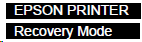
| --- | “Recovery Mode” is displayed | --- |
If firmware update fails. (e.g.) The printer turned off during the update, USB or network communication was interrupted, poor connection between boards, etc. <Recovery mode types>
|
(If the trouble is not resolved, inquire at service support) |